> ## Documentation Index
> Fetch the complete documentation index at: https://viewerdocs.planpoint.io/llms.txt
> Use this file to discover all available pages before exploring further.
# 360° project
> This new feature allows you to create a 360º outlook of your project’s environment and enhance your user‘s experience. Please note you need more than one rendering or photo of your project to enable this feature.
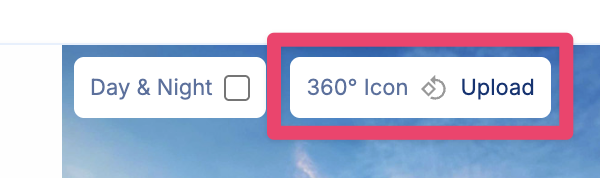
**Change the icon** You can change the 360º icon to any SVG file of your choice. This allows for different experiences, like switching levels, changing buildings, etc. Please read below.
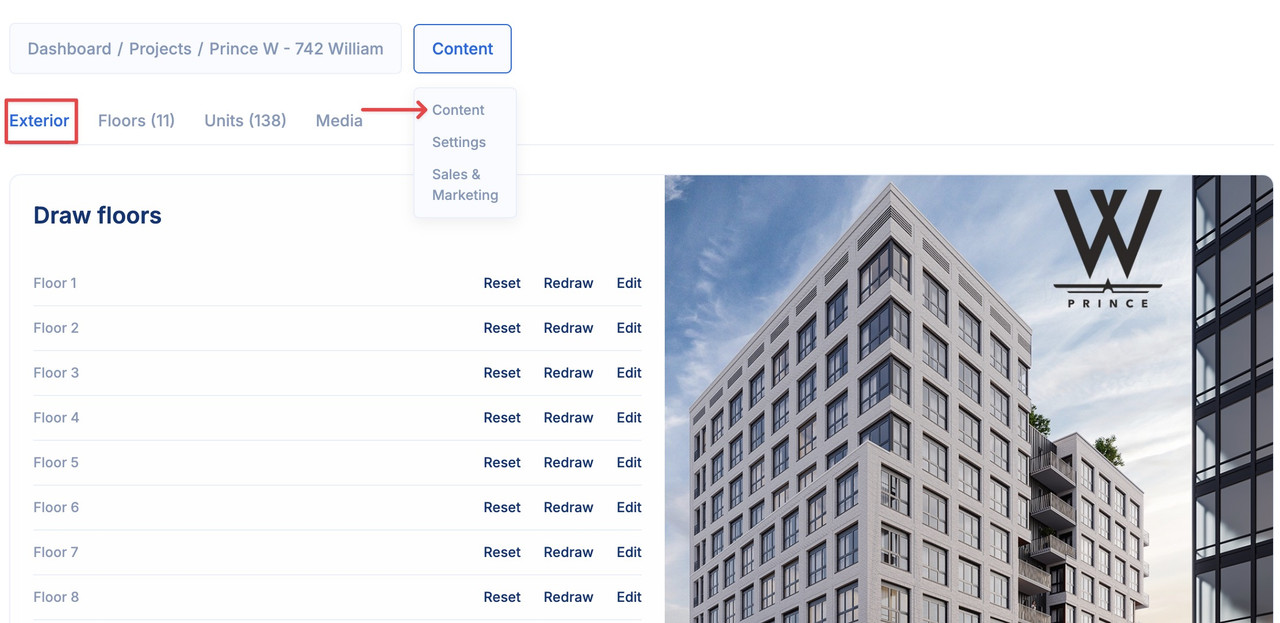
Access the configuration module within your project dashboard and navigate to the **Exterior** tab.
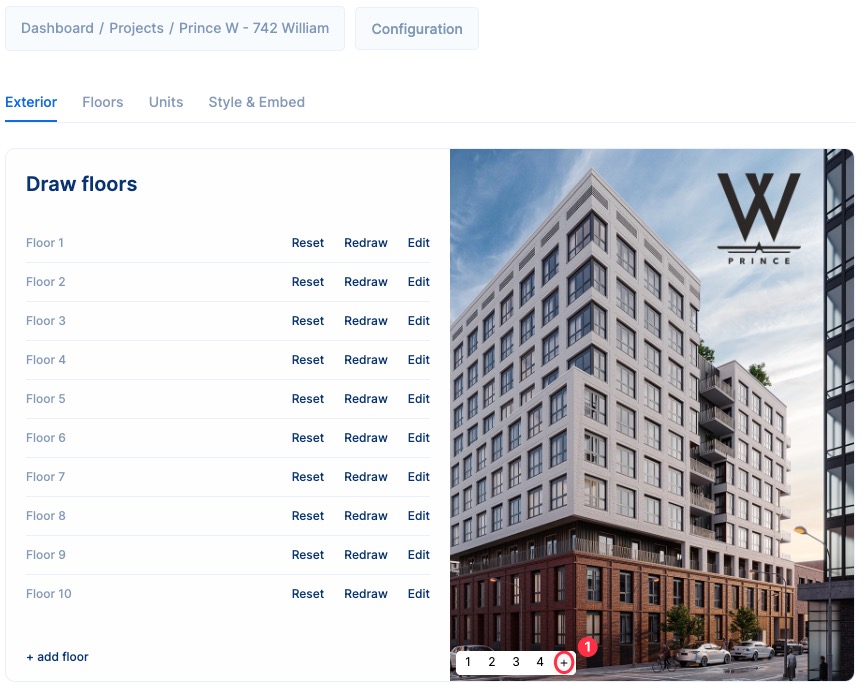
Arrange the desired views in the preferred sequence for presentation within your project. Simply click on the **plus** button to incorporate various views into the display order.
**Important tip:** Upload your images in the desired order for display
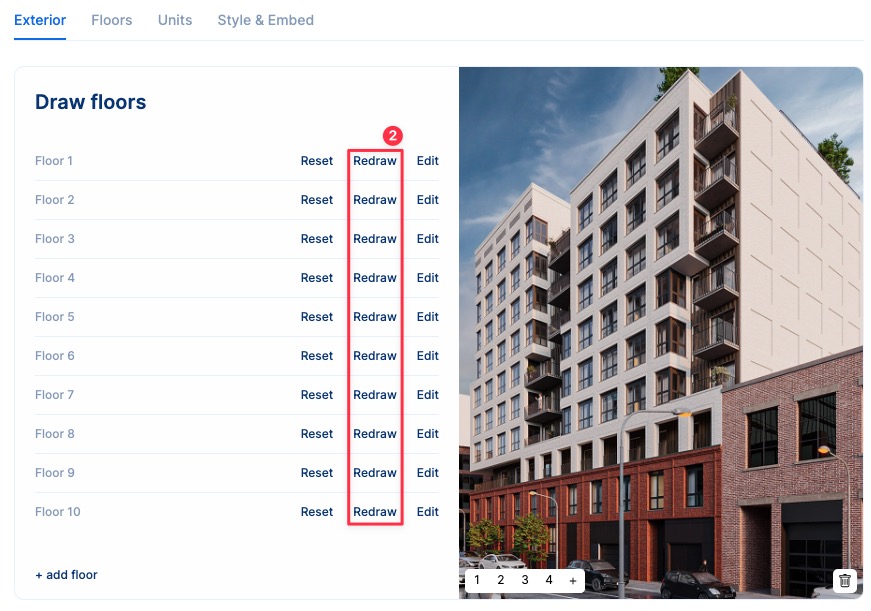
After organizing the images, you need to draw the simple polygons on each floor of each render. Just click on **Draw** or **Redraw** and repeat this process until finished.
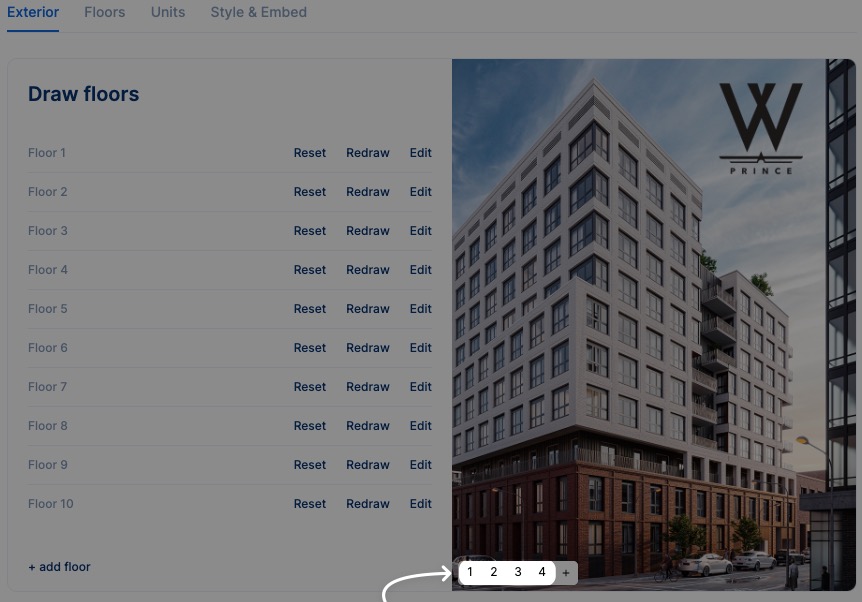
## Review and edit
You can navigate the different views just by clicking here:
## Changing the 360º icon
You can change Planpoint's default 360º icon to any SVG file. You can only upload one file. This option is available in Content > Exterior.
 ## Troubleshooting
Here's how to solve some common problems when setting up a 360º project.
Please try refreshing the page.
This feature is only available in Planpoint V2. Please go to your V2 dashboard.
## Troubleshooting
Here's how to solve some common problems when setting up a 360º project.
Please try refreshing the page.
This feature is only available in Planpoint V2. Please go to your V2 dashboard.