> ## Documentation Index
> Fetch the complete documentation index at: https://viewerdocs.planpoint.io/llms.txt
> Use this file to discover all available pages before exploring further.
# Allocations
> The allocation feature is a brand-new feature to Planpoint. It allows you to assign limited access to floors and units for preferred people, whether it is VIP brokers working on your project or even stakeholders.
By using this feature, you will be able to create a custom Planpoint with the attributed units for a specific person that will require a password in order to access it. Please view the video below for step-by-step guide:
**Now that you’ve watched the video, let’s dive deeper into the details. Below, you’ll find a step-by-step guide with images to help you better understand the process.**
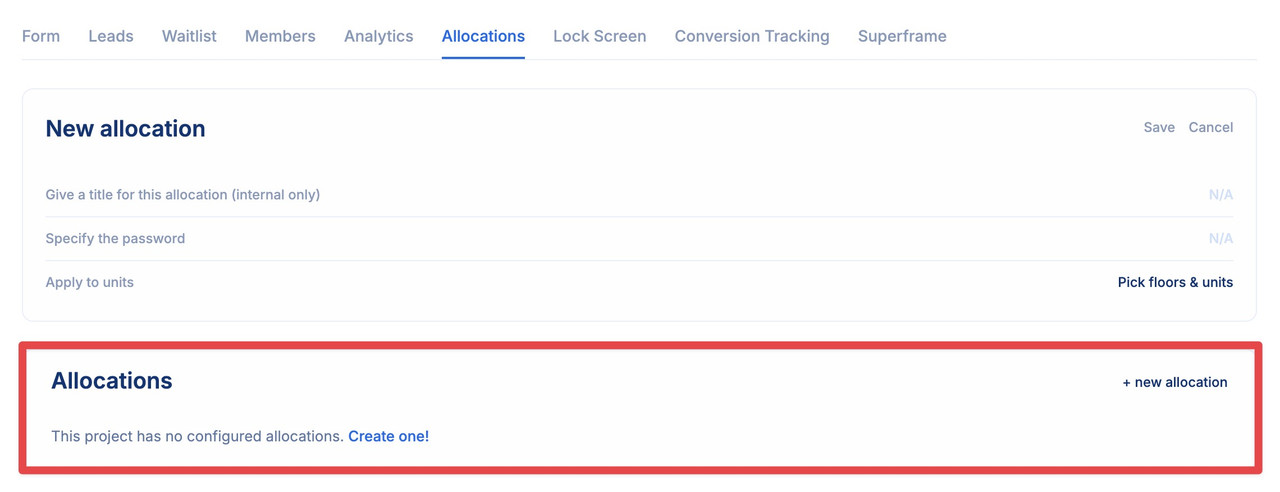
Under the **Allocations** tab, you can allocate restricted access to floors and units for designated individuals, be it VIP brokers contributing to your project or key stakeholders. Utilizing this functionality enables you to generate a personalized Planpoint with designated units for a particular individual, requiring a password for access.
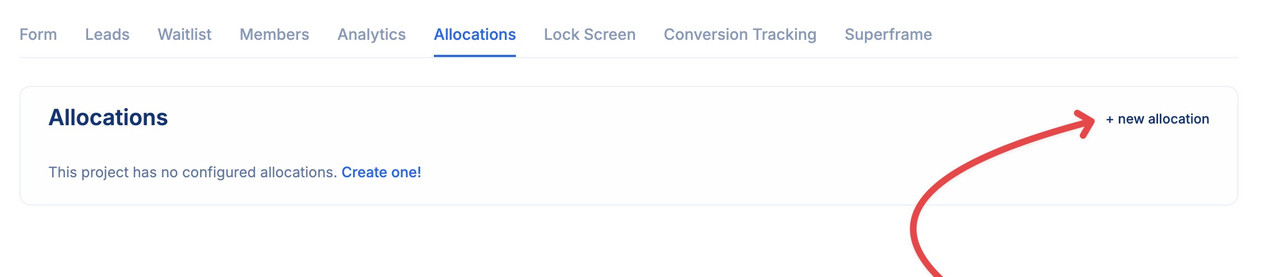
* Start by clicking + new allocation
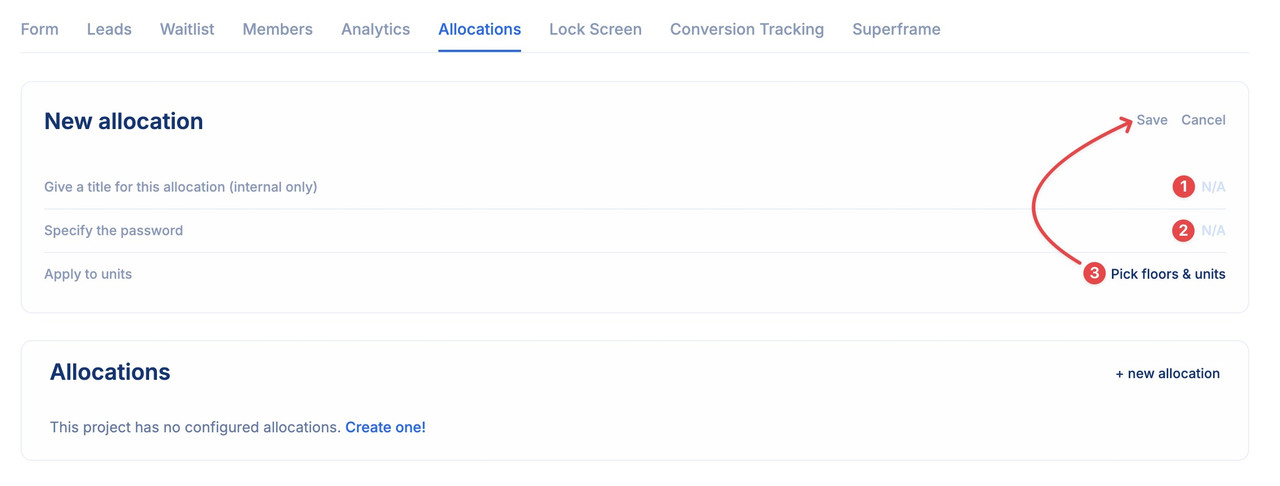
 * Then simply give a title for this allocation
* Specify a password
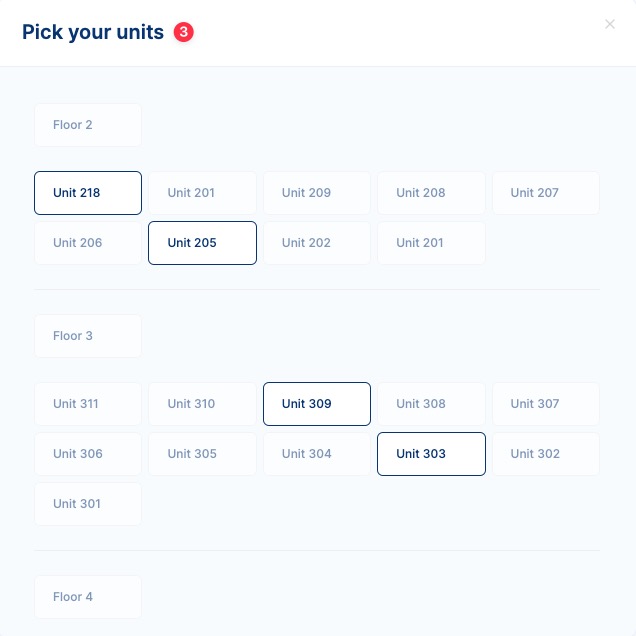
* Select the units you want this allocation to apply and save
* Then simply give a title for this allocation
* Specify a password
* Select the units you want this allocation to apply and save
 * At the bottom of the page you can see all the allocations you have setup for this project