> ## Documentation Index
> Fetch the complete documentation index at: https://viewerdocs.planpoint.io/llms.txt
> Use this file to discover all available pages before exploring further.
# Amenities and parking
> This new feature allows you to add amenities and parking spaces to your Planpoint.
Adding either amenities or parking spaces is very easy, simply follow these steps:
Go to your units module and add a unit.
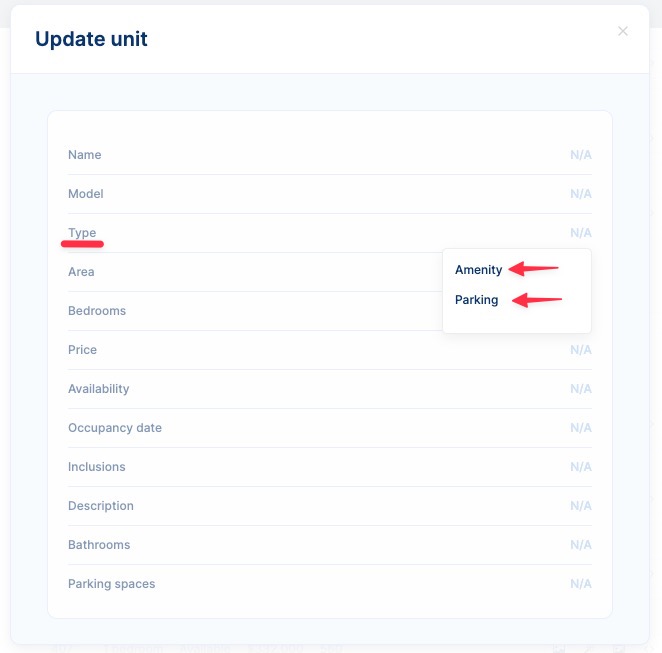
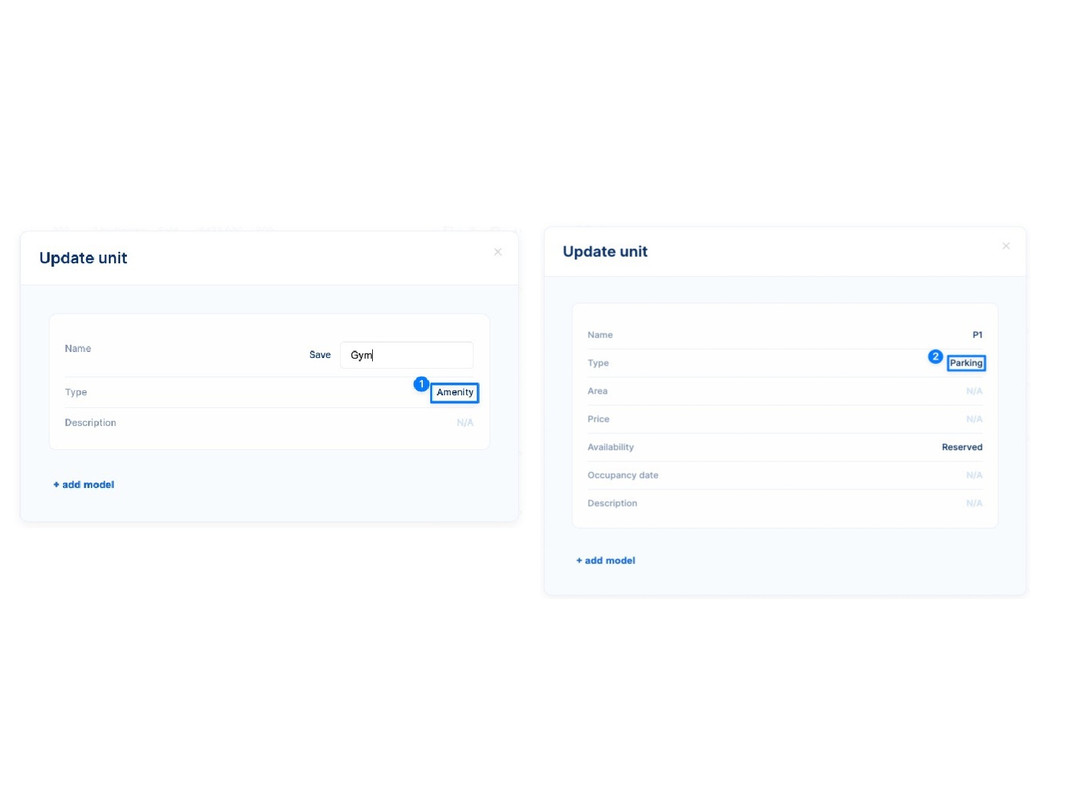
 Now, select the type of unit you wish to add. Choose between **Amenity** or **Parking**.
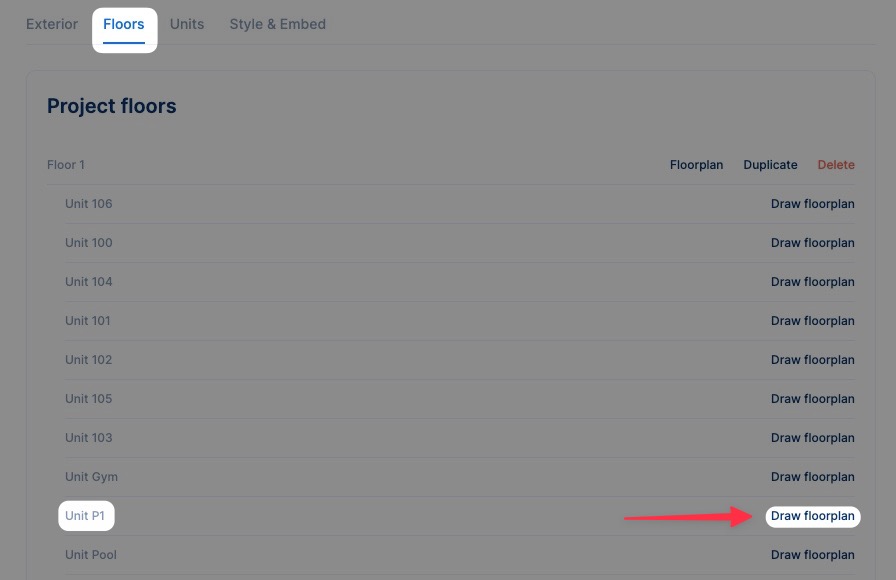
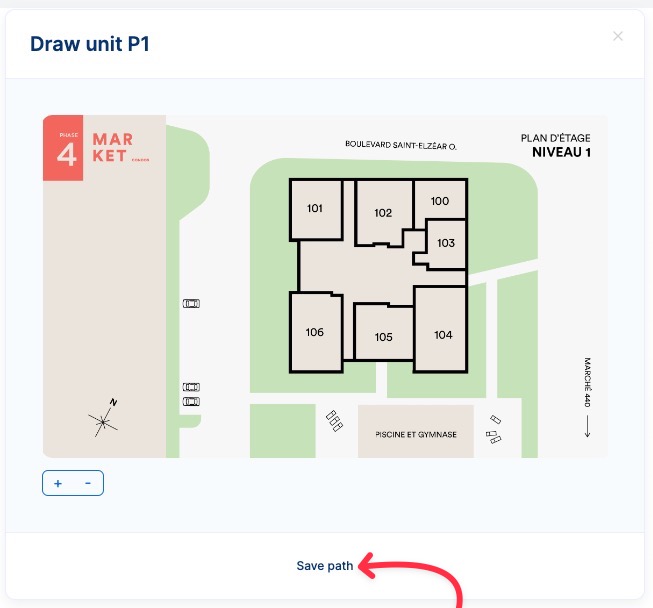
 Go to the **Floors** tab and click on **Draw floorplan** on the desired units.
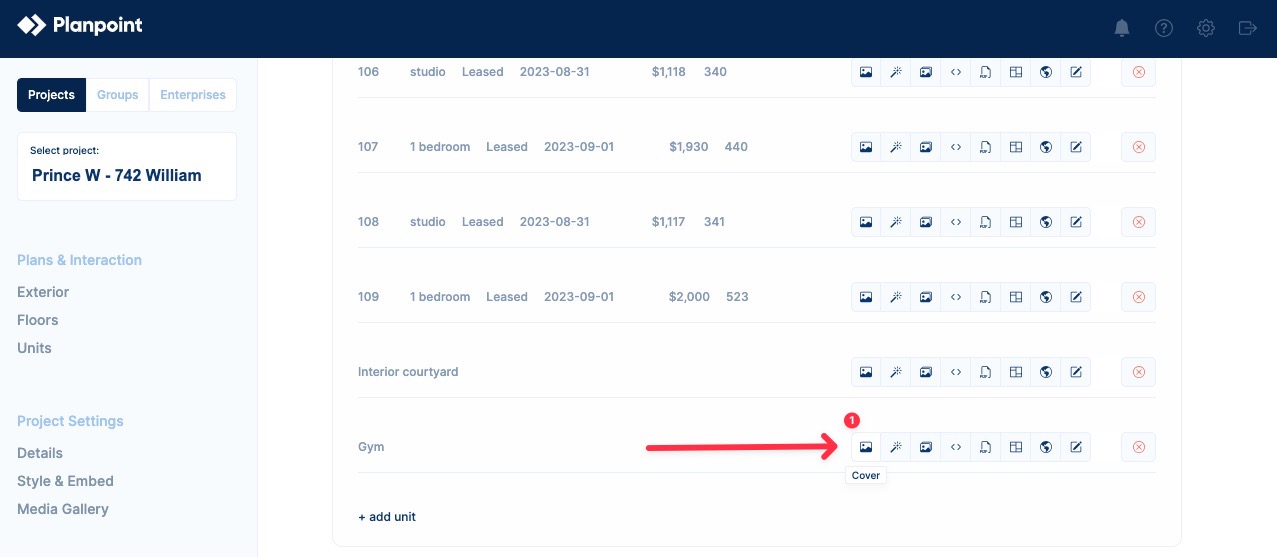
 To incorporate images into your amenities, navigate to the **Units** tab. Find the desire unit and select the **Cover** button and upload the image you wish to use as the main one.
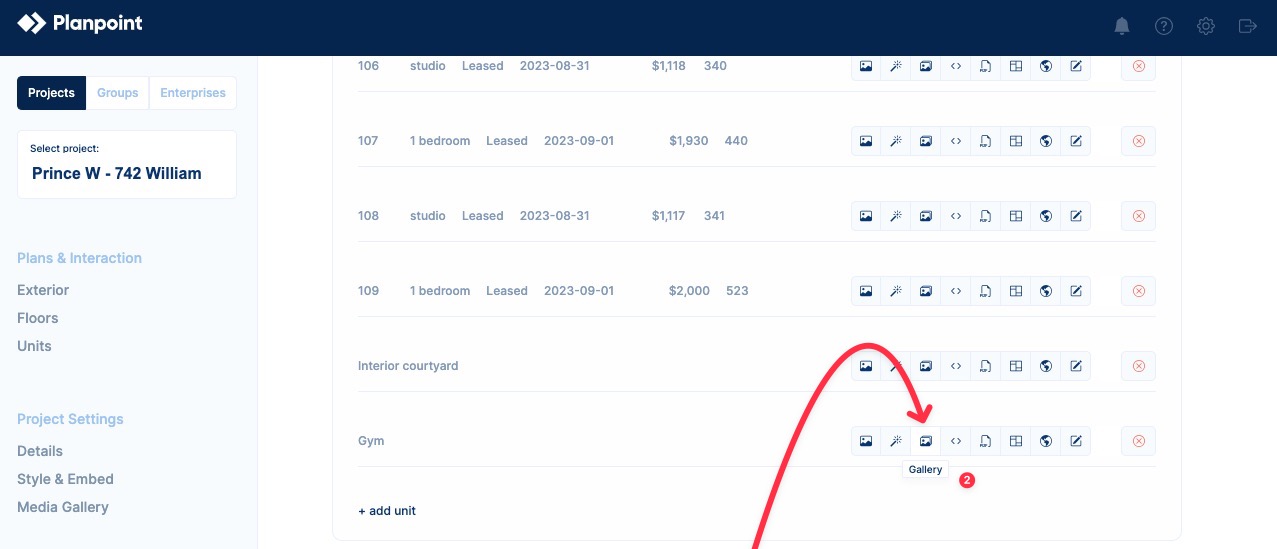
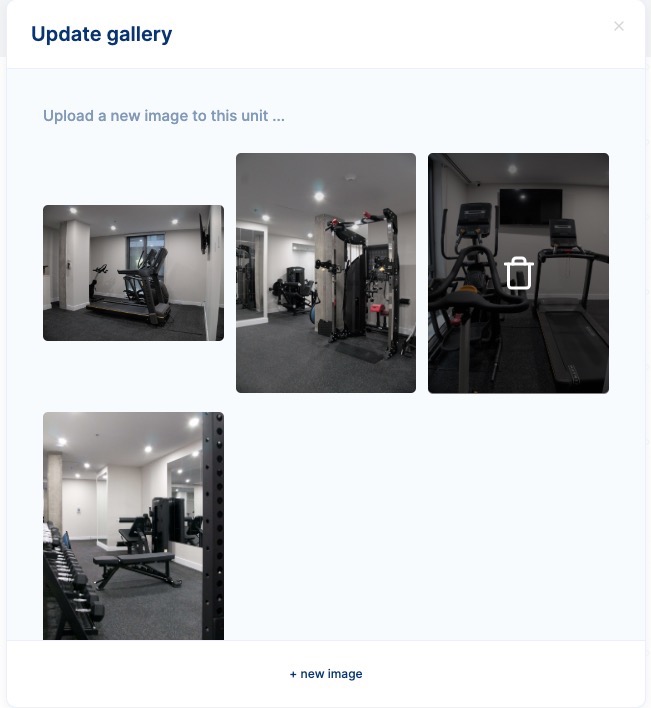
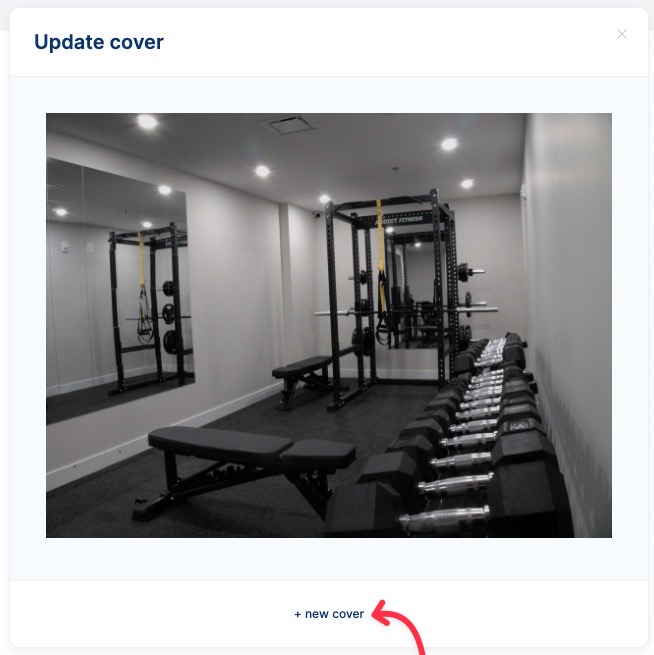 Following the addition of your cover image, you may include additional pictures by clicking the **Gallery** button.
 Remember that you can always see your work-in-progress in the **[Style and Embed](https://viewerdocs.planpoint.io/preview-embed)** tab