> ## Documentation Index
> Fetch the complete documentation index at: https://viewerdocs.planpoint.io/llms.txt
> Use this file to discover all available pages before exploring further.
# SEO indexing
> Turn your Planpoint Viewer into search engine-indexable pages so clients can find your units directly from search result pages (Google, Bing, and AI).
## How It Works, In Short
* Your real estate project's website is hosted on its own domain (e.g. `astoria.com`).
* Planpoint Viewer is embedded on a page like `astoria.com/floorplans`. That embedded viewer is **not** crawlable by Google because it's an iframe.
* To make the content of Planpoint Viewer searchable, add a **CNAME subdomain** (e.g. `floorplans.astoria.com`) and connect it in Style & Embed settings.
* On that subdomain we serve the units as **dedicated, server-rendered SEO pages** — not the embedded Viewer. The content lives in the raw HTML, so Google can read and index it. Each page still links into the interactive viewer.
* The **sitemap.xml and robots.txt** documents are generated automatically and stay up to date on every publish — nothing manual.
* **Titles and descriptions** are automatic and descriptive, e.g. the landing page reads `Astoria — Floor Plans & Availability`, unit pages read `Unit 202 — 2 Bedroom Floor Plan at Astoria`, with auto descriptions summarizing available units, layouts and pricing.
***
When you connect a **custom domain** to your project (e.g. `viewer.yourproject.com`), Planpoint automatically serves a set of public, search-engine-friendly pages for it. The domain exposes your units as real, crawlable web pages — so they can be indexed by Google and show up when buyers search.
The pages are fully server-rendered (the content is in the HTML, not loaded later by JavaScript), which is what makes them indexable.
***
## Before You Start
You need a **custom domain connected to your project**. If you haven't set one up yet, please go to [Style & Embed](https://viewerdocs.planpoint.io/preview-embed).
This applies only to **custom domains**. Your Planpoint dashboard and the default `*.planpoint` links are unaffected — they keep working exactly as before.
***
## What Gets Published
On your custom domain, these pages are generated automatically:
| URL | Page |
| -------------------------------- | ------------------------------------------------ |
| `/` | Landing page listing all available units |
| `/unit/` | Individual unit page (beds, baths, area, floor…) |
| `/` (e.g. `/2-bedrooms`) | Filtered list for a unit type |
| `/sitemap.xml` | Sitemap of all the above, for search engines |
| `/robots.txt` | Crawl rules + link to the sitemap |
Each page carries a proper title, heading, and unit details so Google can understand and rank it.
***
## Step-by-Step
### Step 1 — Confirm your pages are live
Open your project's custom domain in a browser and check:
* The **root** (`viewer.yourproject.com`) shows your units
* Clicking a unit opens a page like `viewer.yourproject.com/unit/301`
* A filter URL like `viewer.yourproject.com/2-bedrooms` shows a filtered list
* `viewer.yourproject.com/sitemap.xml` lists your URLs
* `viewer.yourproject.com/robots.txt` loads
Right-click any page → **View Source**. If you can see the unit text in the raw HTML, the page is indexable. That's exactly what Googlebot reads.
### Step 2 — Add your domain to Google Search Console
Go to [Google Search Console](https://search.google.com/search-console) and add a new **URL prefix** property using your full domain (e.g. `https://viewer.yourproject.com/`).
A **URL-prefix** property covers just that subdomain. It does **not** cover your root marketing site (`yourproject.com`) — that's a separate property.
### Step 3 — Verify ownership
Choose the **HTML file** verification method (Google's recommended option):
* Download the verification file Google gives you (e.g. `google.html`).
* Send it to your Planpoint contact — we host it on your domain for you.
* Once it's live, click **Verify** in Search Console.
Planpoint serves this file automatically for connected domains — you don't upload anything yourself. Just share the file (or its name) with us and we'll confirm when it's ready to verify.
### Step 4 — Submit your sitemap
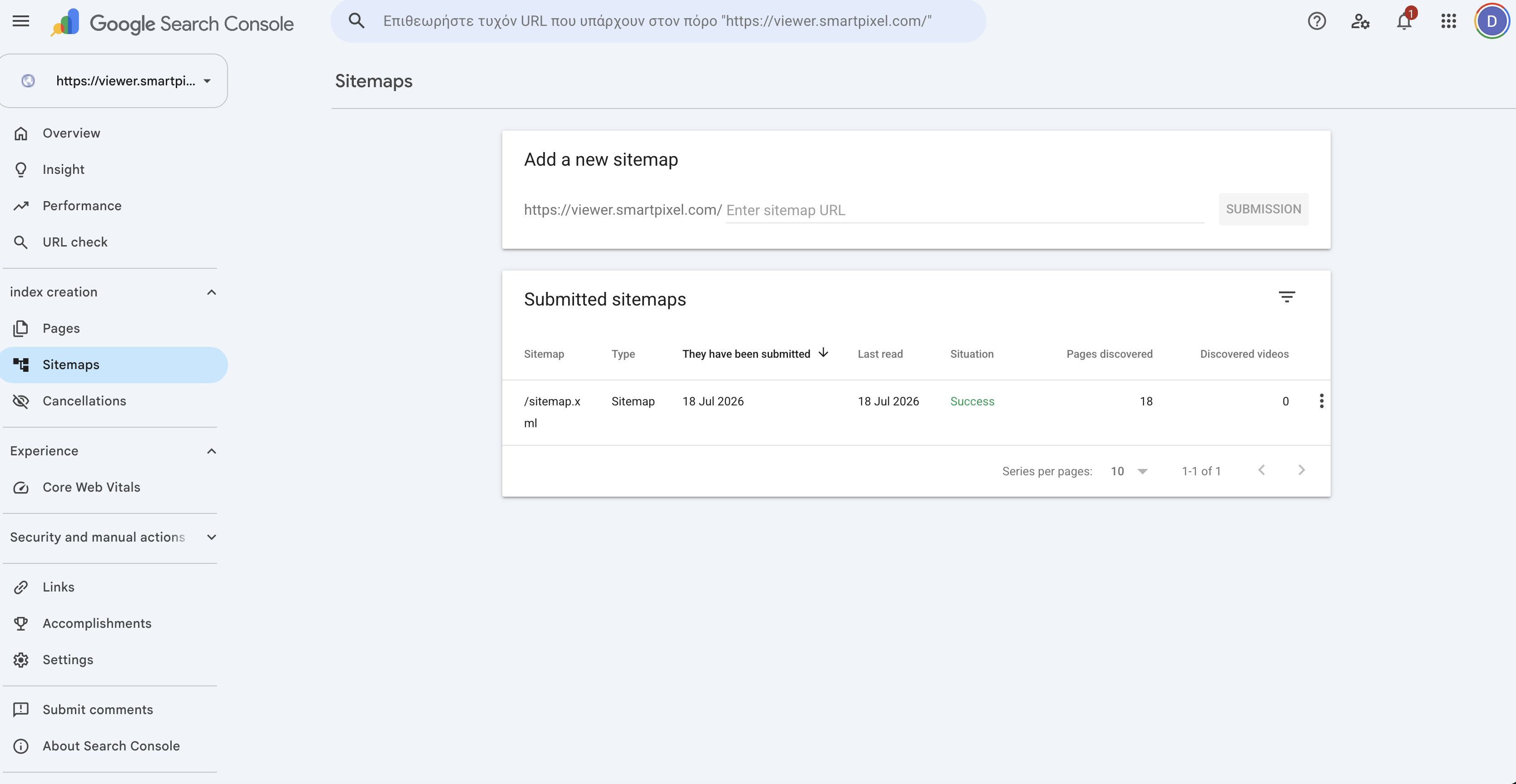
In Search Console, open **Sitemaps** and submit:
```text theme={null}
sitemap.xml
```
Google will read it and discover all your unit and filter pages. A **Success** status means it was accepted.
### Step 5 — Request indexing (optional, speeds things up)
Use **URL Inspection** at the top of Search Console, paste a page URL (e.g. a unit page), and click **Request Indexing**. Do this for your homepage and a few key units to jump the crawl queue instead of waiting.
***
## How to Check If You're Indexed
* **In Google:** search `site:viewer.yourproject.com`. It lists every page Google has already indexed for the domain. New pages appear here over time as they're crawled.
* **In Search Console:** the **Pages** report shows how many URLs are indexed, and **Performance** shows impressions and clicks once pages start ranking.
Indexing is not instant. New pages typically take **days to a few weeks** to appear in Google, even after submitting the sitemap. An empty `site:` result early on is normal — it means Google hasn't crawled yet, not that anything is wrong.
***
## FAQ
**Does this change my dashboard or embed?** No. Only public pages on your connected custom domain are affected. Your dashboard, embeds, and Planpoint links are unchanged.
**Will unavailable/sold units show up?** Only units surfaced on your public pages are included in the sitemap.
**Can I index my main website (`yourproject.com`) too?** That's a separate site and a separate Search Console property. This feature covers the Planpoint viewer domain only.