> ## Documentation Index
> Fetch the complete documentation index at: https://viewerdocs.planpoint.io/llms.txt
> Use this file to discover all available pages before exploring further.
# Floors
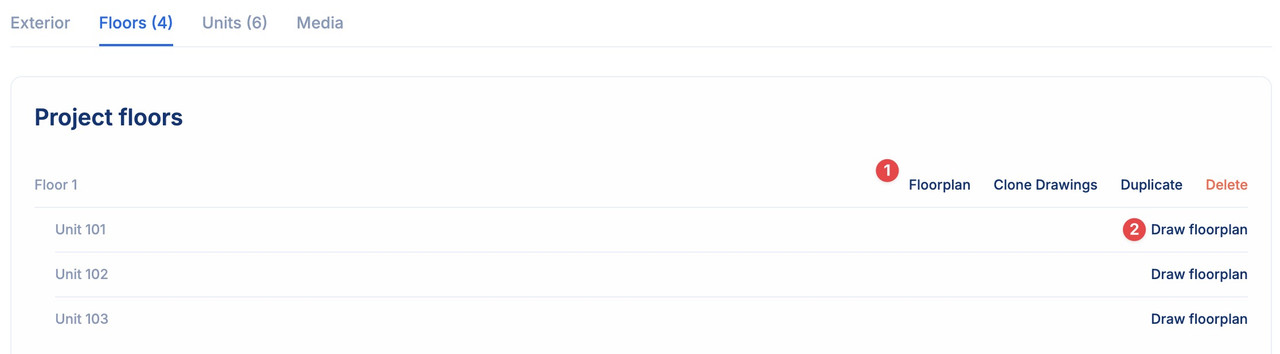
In the **Floors** module, selecting the **floorplan** option will grant you access to the corresponding floor plate for each floor:
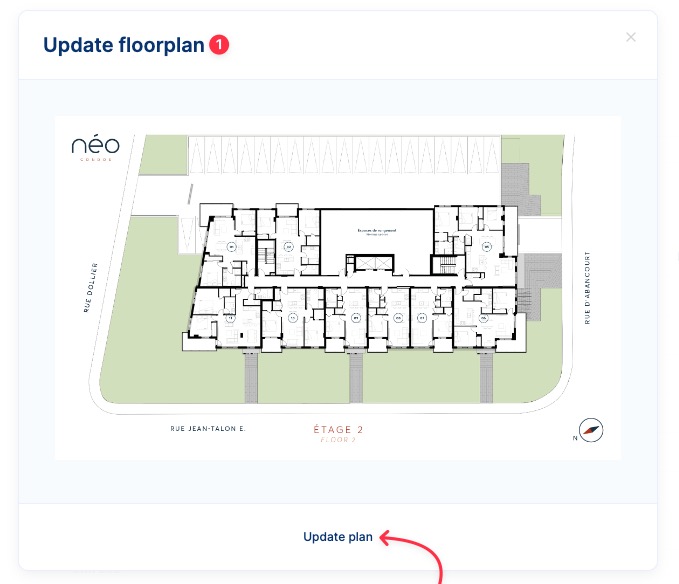
 You can also update the floor plan here:
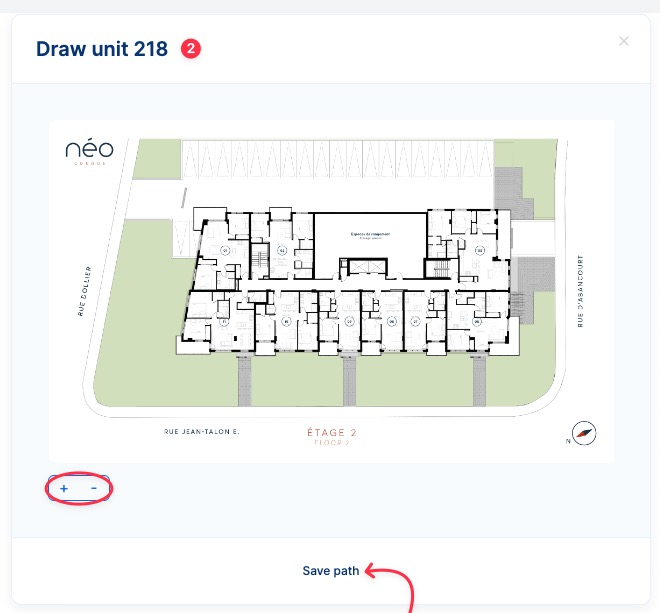
 Selecting **draw floorplan** option will enable you to draw the polygon for the corresponding unit in the floor plan:
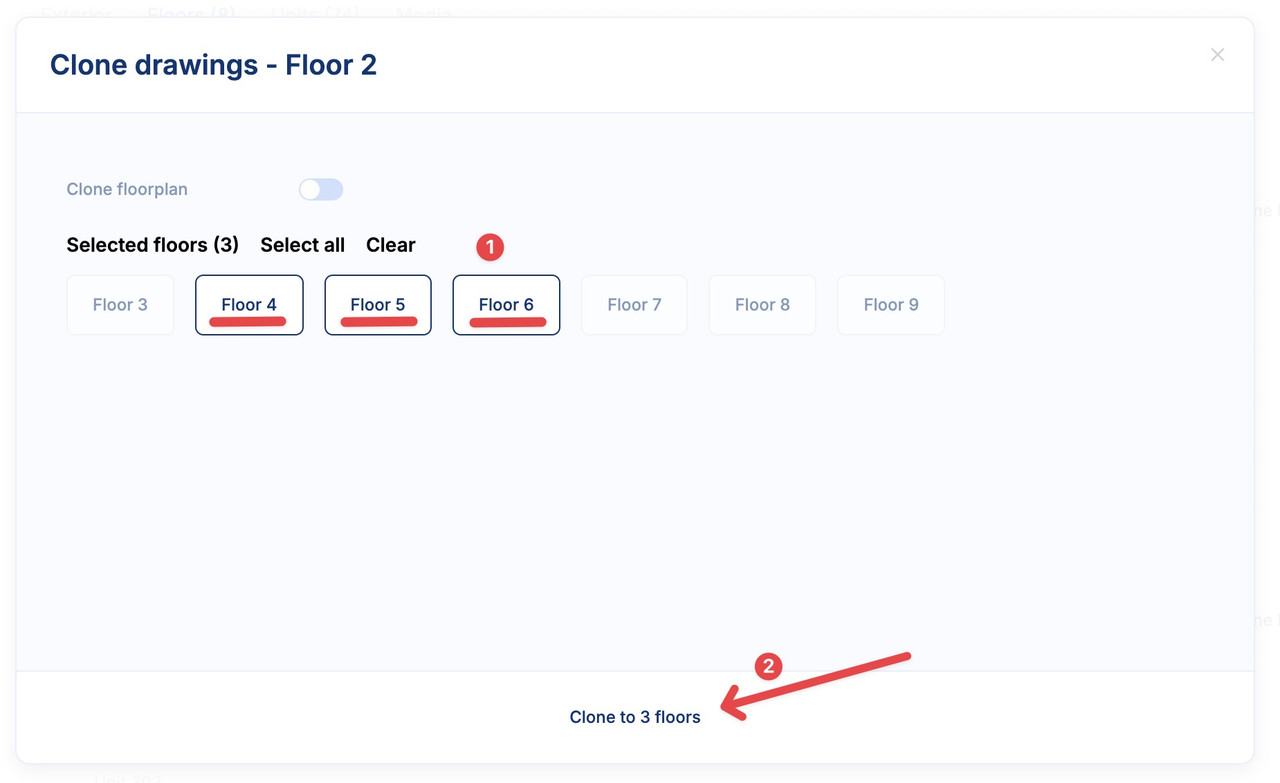
 After drawing the polygons for a floor, and if other floors share the same floor plate, you can clone the drawings. This will help speed up the process by duplicating the drawn polygons.
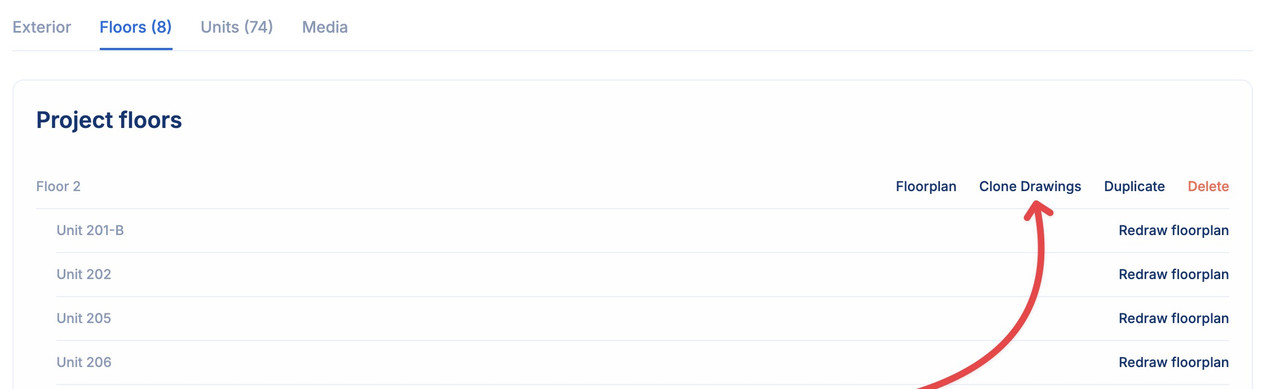 After choosing the floor you wish to copy from, it will serve as the reference floor, and its drawings will be cloned. You may choose as many floors as needed. Enabling the **Clone Floorplan** option will copy both the drawings and the floor plans from the selected floor.
 Clicking on the **delete** button will remove the entire floor along with its units.