> ## Documentation Index
> Fetch the complete documentation index at: https://viewerdocs.planpoint.io/llms.txt
> Use this file to discover all available pages before exploring further.
# Homes & Land
The **Homes & Land** option lets you choose between one of three models:
1. A regular image (i.e. money-shot rendering or a bird's-eye view)
2. An interactive SVG
3. Custom polygons directly on our native map
### Regular image
You can map your homes and plots of land to any type of image. In a **Homes & Land project**, you don't draw polygons on top of floors - *there's no concept of floors* - but directly on the home itself or the land itself.
 Here's a **[live demo](https://www.planpoint.io/types/single-family).**
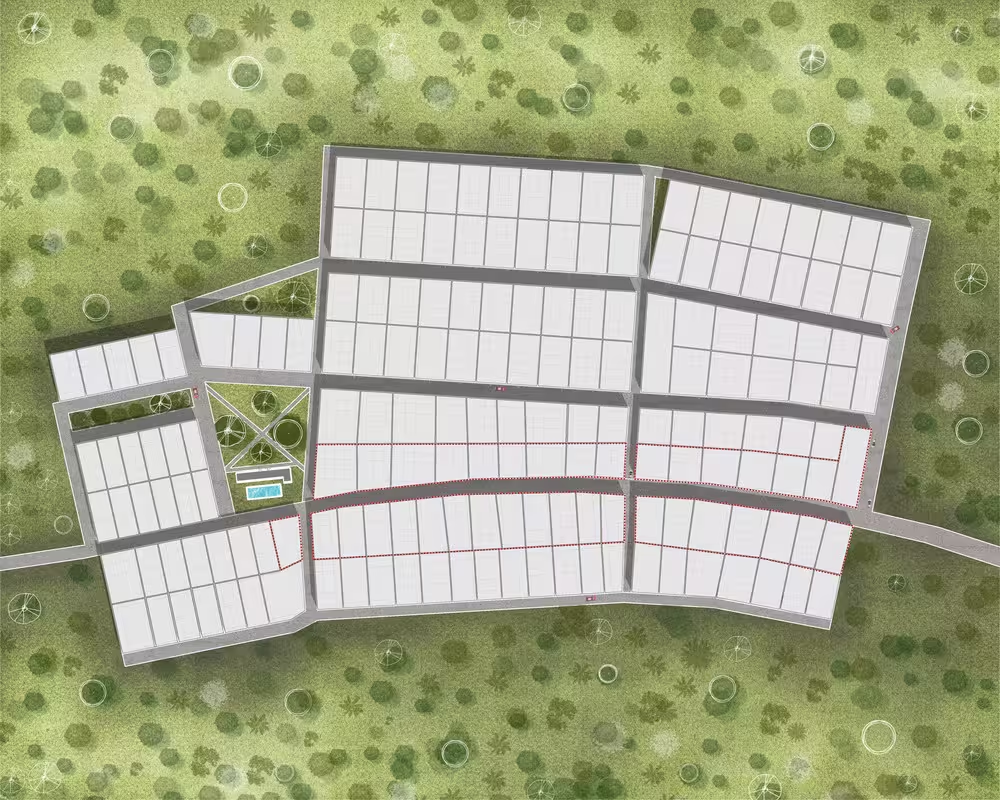 Here's a **[live demo](https://app.planpoint.io/Mariners-2/Mariners-2).**
You can use our traditional polygon drawing feature to make these homes or plots of land selectable and linkable to the relevant content.
### Interactive SVG
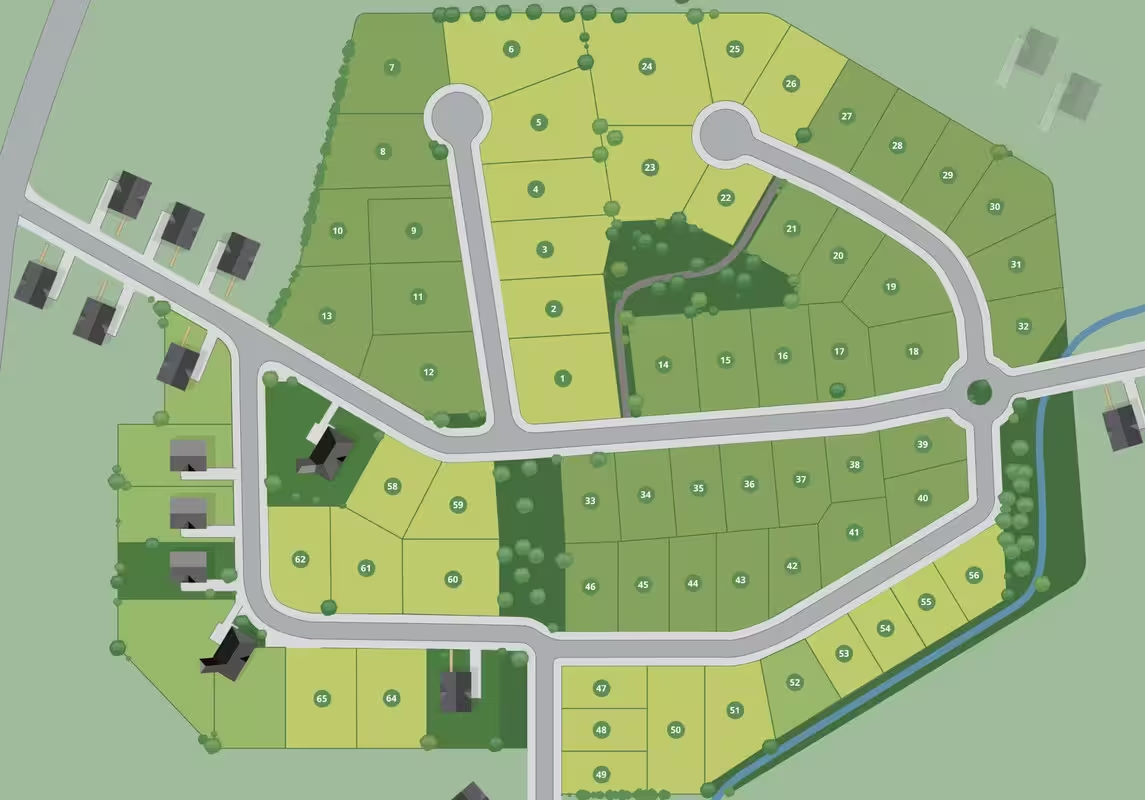
The interactive SVG model is mostly used for maps that have been created in vector editing software. This model allows pre-existing vector shapes to be selectable inside Planpoint. It also allows other elements to be placed on top of the shapes without affecting the hover color.
Here's a [live demo](https://app.planpoint.io/Mariners3/Mariners).
Here's a **[live demo](https://app.planpoint.io/Mariners-2/Mariners-2).**
You can use our traditional polygon drawing feature to make these homes or plots of land selectable and linkable to the relevant content.
### Interactive SVG
The interactive SVG model is mostly used for maps that have been created in vector editing software. This model allows pre-existing vector shapes to be selectable inside Planpoint. It also allows other elements to be placed on top of the shapes without affecting the hover color.
Here's a [live demo](https://app.planpoint.io/Mariners3/Mariners).
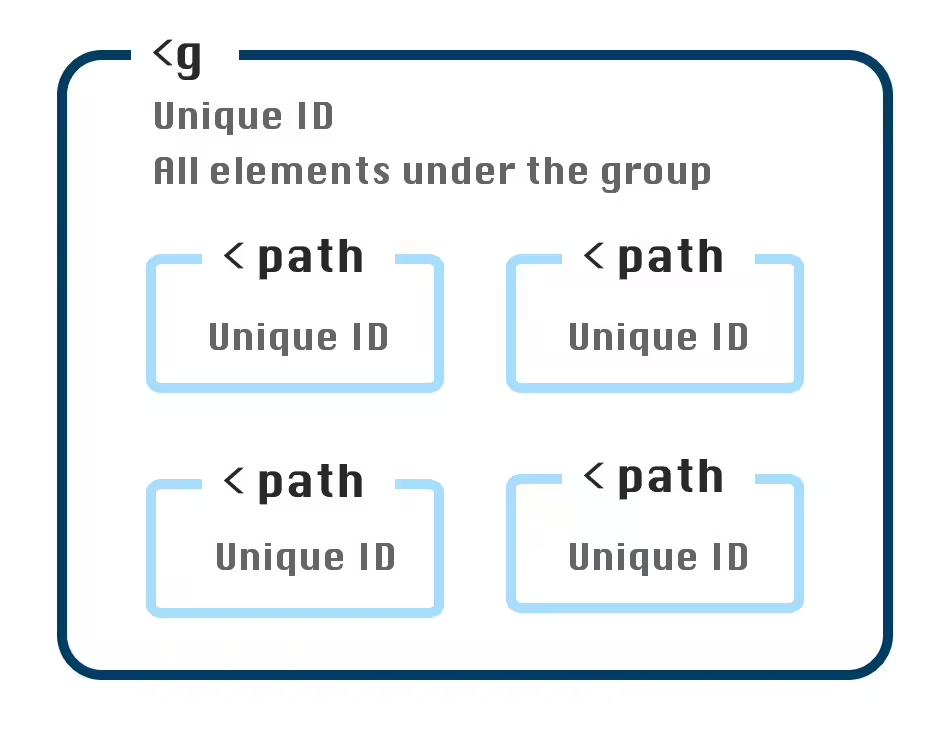
 To use the interactive SVG model, you need to follow a few important requirements when exporting your file.
* All elements you want to be selectable must be grouped together under one group.
* This group must have a unique ID.
* Each element under this group must have it's own unique ID.
To use the interactive SVG model, you need to follow a few important requirements when exporting your file.
* All elements you want to be selectable must be grouped together under one group.
* This group must have a unique ID.
* Each element under this group must have it's own unique ID.
 If you want to inspect an example file, you can **[download our SVG template here](https://svgshare.com/i/14Pw.svg)**.
### Custom polygons
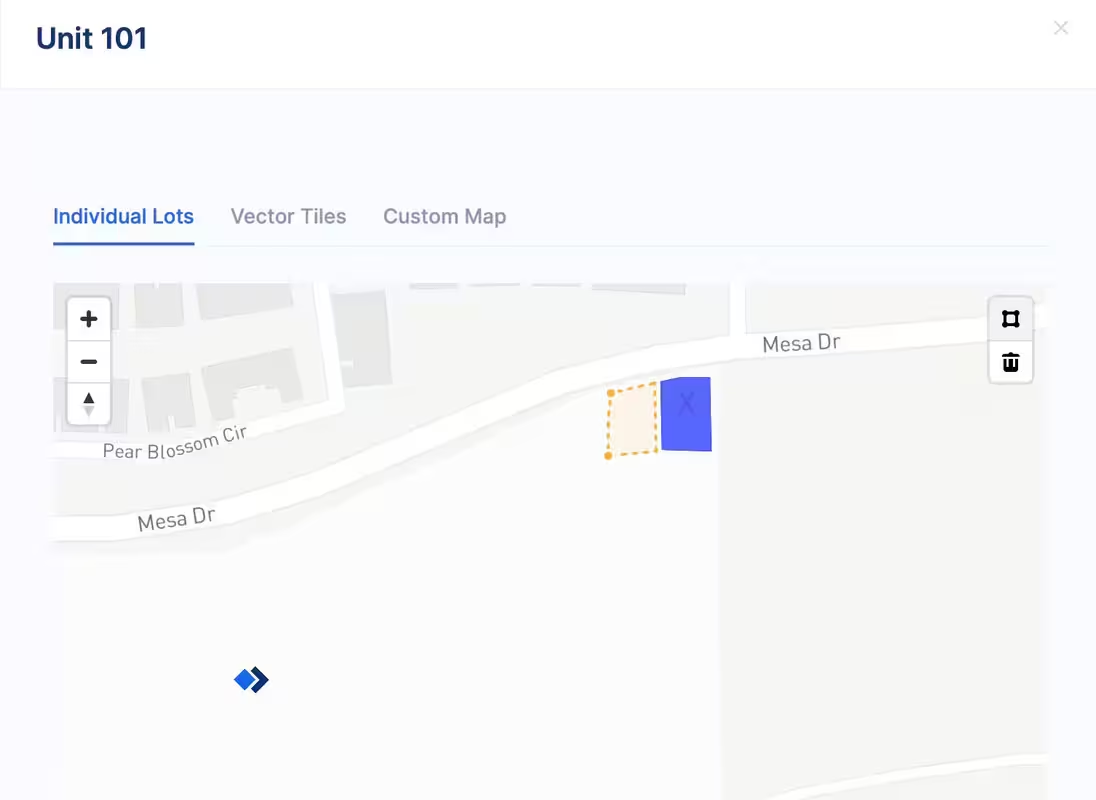
This third model lets you draw polygons directly on our native map interface.
If you want to inspect an example file, you can **[download our SVG template here](https://svgshare.com/i/14Pw.svg)**.
### Custom polygons
This third model lets you draw polygons directly on our native map interface.