

Before you begin
- Your embed URLs need
?customCss=truefor the custom styles to load (see Step 4). - Nested elements must be targeted with wildcard selectors such as
[class*="unitTile"]— plain class names won’t work (see Understanding CSS selectors).
Video Guide for Visual Learners
How to set up custom CSS
Step 1: Open the CSS editor
- Go to Style & Embed → Style
- Click Customize to open the style editor
- In the toolbar at the bottom of the preview, click the
</>Custom CSS button
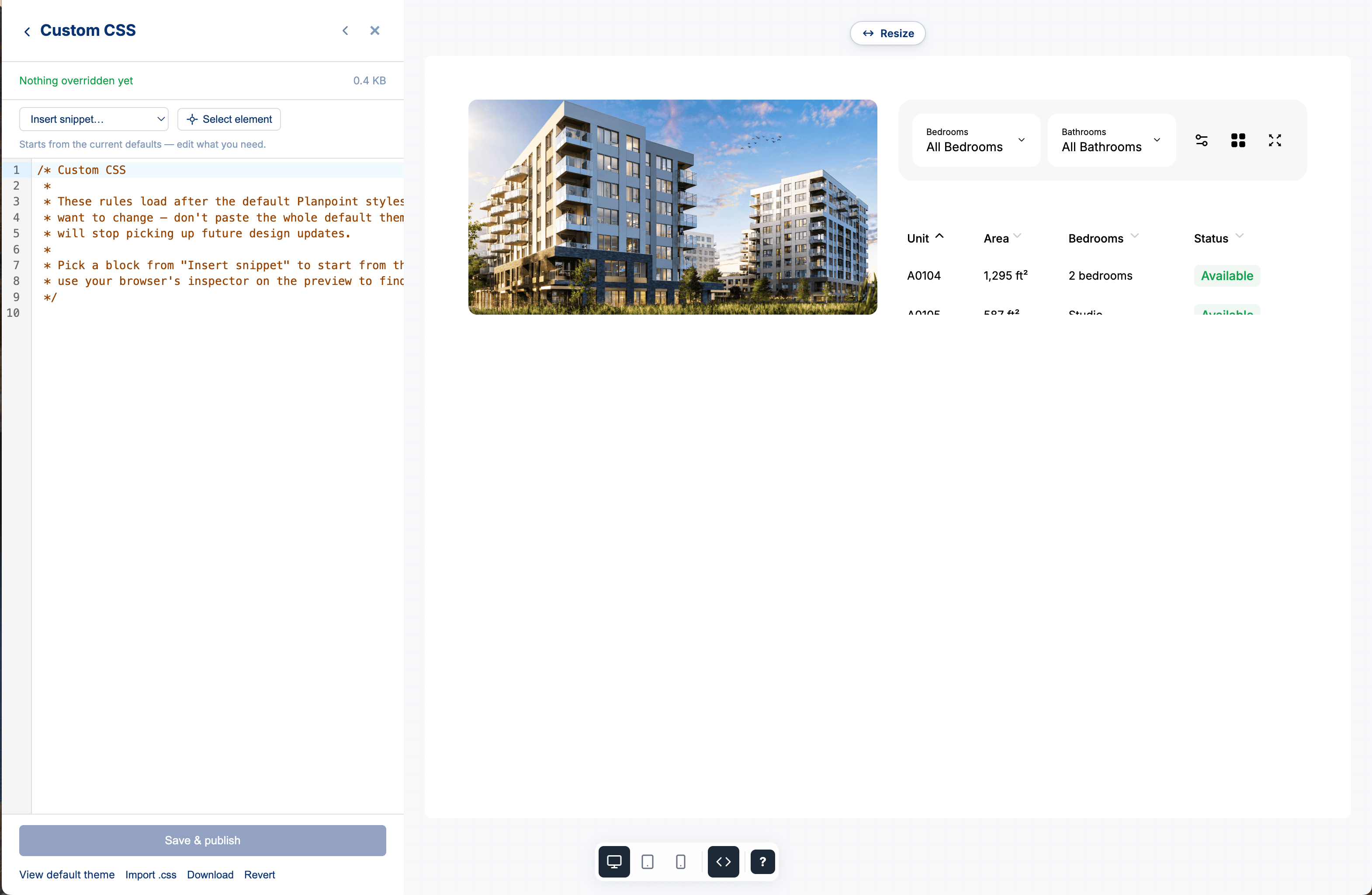
The custom CSS editor inside the style editor
Step 2: Write your rules
Type in the editor and the preview updates instantly — no upload, no reload.- Pick a block from Insert snippet — Brand colours, Filter bar, Unit cards, Unit detail
- CTA buttons, Status badges, and more. Each one is pre-filled with the current default values, so you edit instead of starting from a blank page.
- Click Select element, then click anything in the preview. Planpoint works out the right selector for it, drops an empty rule into the editor and lists the element’s current values as comments you can uncomment and edit. Press Esc to cancel. If the selector is already in your file, the cursor jumps to it instead.
- Use the Desktop / Tablet / Mobile buttons to check your styles at every breakpoint.
- Drag the sidebar’s right edge to give the editor more room — the width is remembered.
- Collapse the sidebar (the
‹button) for a full-width preview; your work is kept. - Right-click an element in the preview and choose Inspect to find the selector you need.
- Click View default theme to read the current default stylesheet for reference — read it to find selectors, but don’t paste it into the editor.
Available snippets
The searchbox editor has its own set: shell, filters row, dropdown menus, search button, range sliders and chips.
Step 3: Save and publish
Click Save & publish (or press ⌘/Ctrl + S). The status above the editor tells you where you stand: Nothing overridden yet, Unsaved changes or Published. Publishing uploads your stylesheet and turns custom CSS on for this viewer — there’s no separate toggle to flip anymore. The links under the button cover everything else:Every save uploads a new file, so your previous versions stay available — nothing is overwritten.
Step 4: Add the URL parameter
Custom CSS only loads on embeds that ask for it: Before:Group, enterprise and searchbox stylesheets
Each surface has its own stylesheet, edited the same way:
The searchbox uses the same editor. When you open it from an enterprise, a Viewer / Searchbox switch appears at the top of the sidebar so you can move between the two stylesheets — the preview and the snippet list follow along. Searchbox selectors aren’t scoped to
[data-pp-embed], since the searchbox is its own page.
Understanding CSS selectors
The viewer is built with CSS Modules, so class names get a unique suffix (unitTile becomes something like Style1_unitTile__a1B2c). Target elements with the stable data-pp-* attributes and with [class*="…"] wildcards.
✅ Correct selectors that work:
Common elements you can style
CSS custom properties (variables)
The default theme is built on CSS custom properties. Overriding them is the safest way to restyle the viewer: a few lines change everything consistently, and they keep working when the design is updated.These variables live in your stylesheet, not in the viewer itself. Setting
--pp-brand-primary on its own does nothing until a rule reads it — which is exactly what the snippets do. Add Brand colours first, then any other snippet follows it.Example: styling status badges
Troubleshooting
It looks right in the editor but not on my site
- Missing URL parameter: make sure
?customCss=trueis in your embed URL - Not published: the status above the editor must read Published, not Unsaved changes — click Save & publish
- Cache: reload with a hard refresh, or test in a private window
Some elements aren’t styling correctly
You’re probably using selectors that don’t exist in the viewer:- ❌ Don’t use:
[data-pp-button],[data-pp-unit-tile],.unitTile - ✅ Do use:
[class*="button"],[class*="unitTile"]
[class*="…"] wildcard.
My rule is ignored
Add!important. CSS Modules generate high-specificity selectors, so most overrides need it.
I changed a --pp-* variable and nothing happened
Variables only do something when a rule reads them. They’re defined by your stylesheet, not by the viewer — so --pp-brand-primary on its own changes nothing. Add the Brand colours snippet plus the snippet for the section you want to restyle.
My viewer stopped getting design updates
That happens when the published stylesheet is a full copy of the default theme: it pins every component to an old version. Trim it down to the rules you actually changed.How do I go back to the default theme?
Click Remove in the CSS editor, or drop the?customCss=true parameter from your embed URL. Removing doesn’t delete your stylesheet — you can paste it back later.