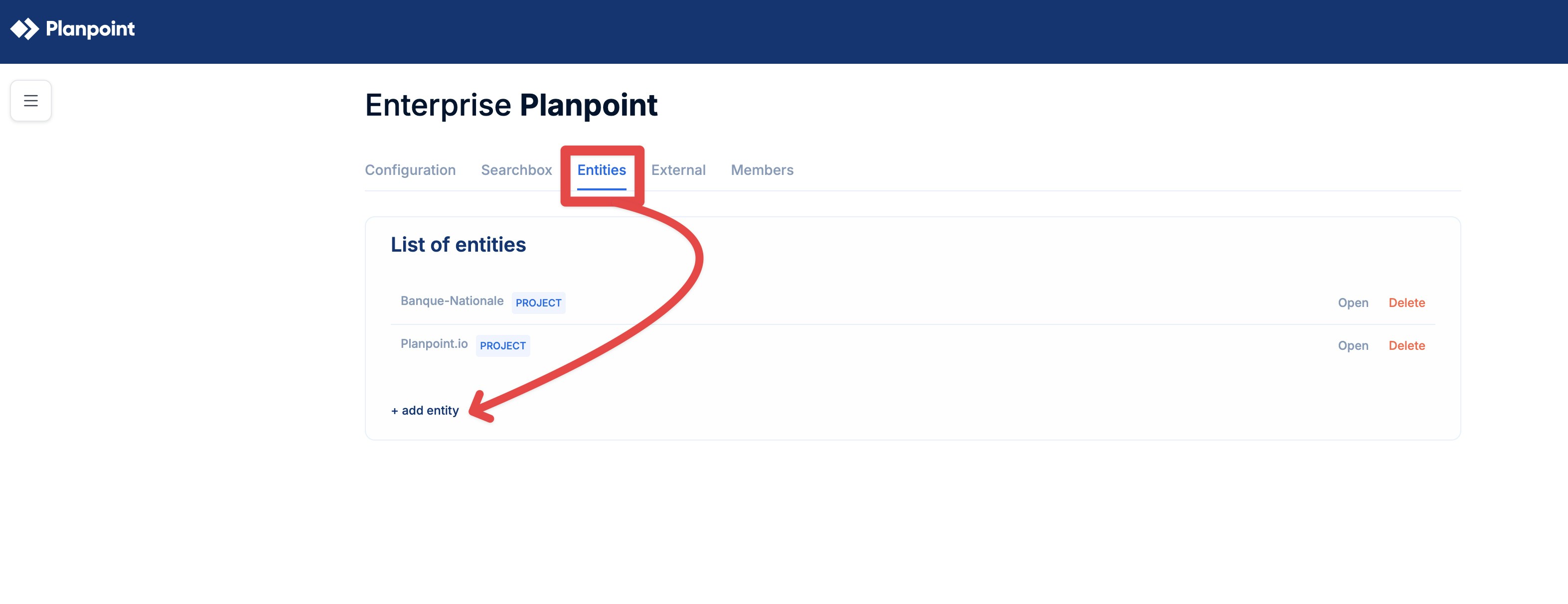
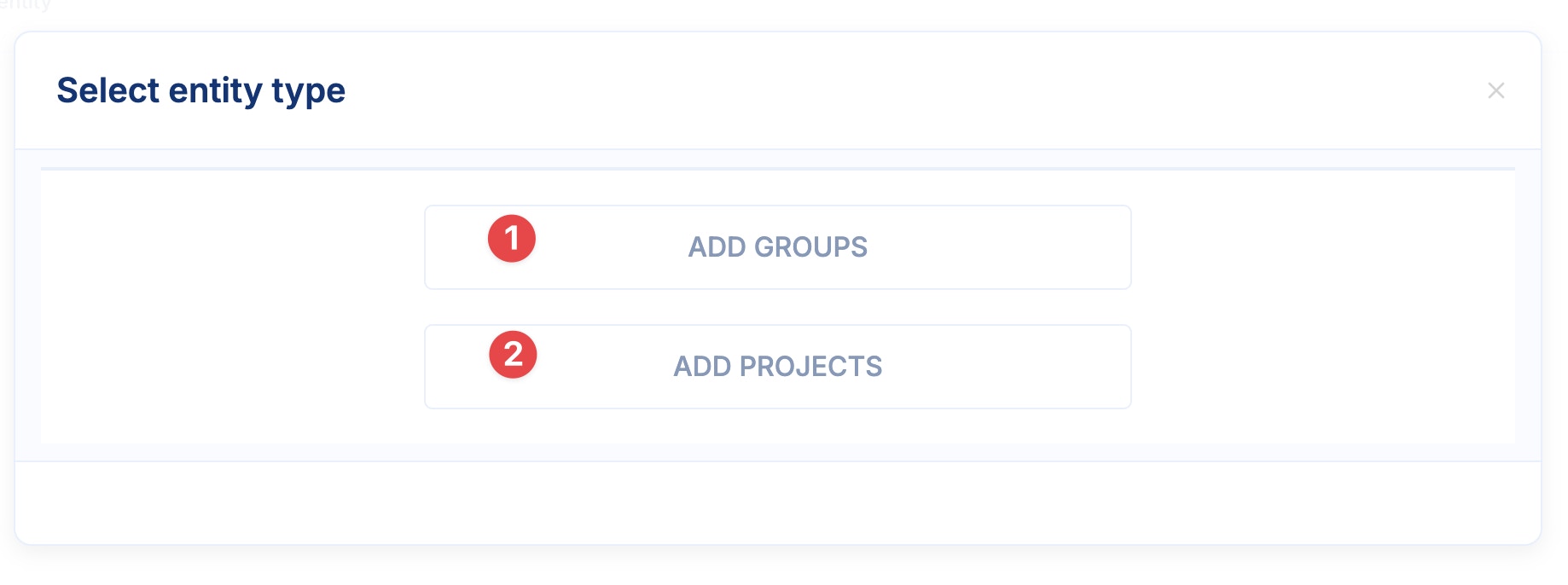
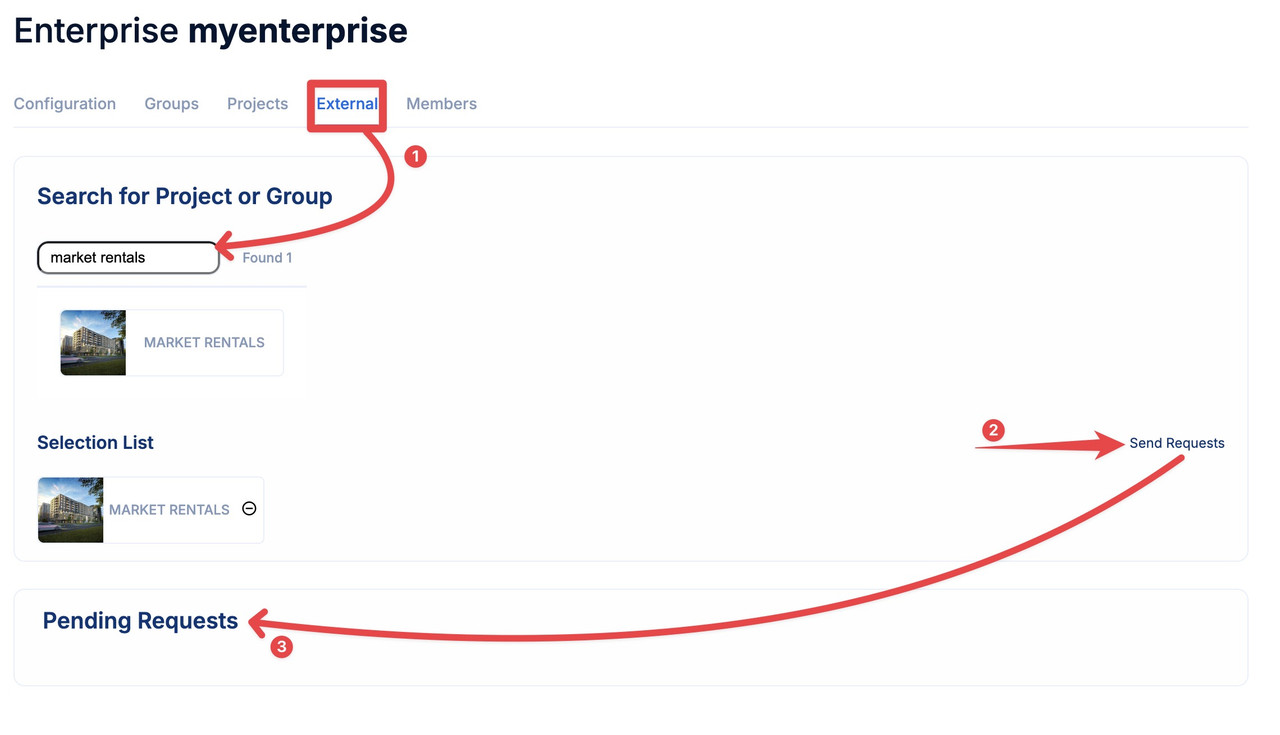
In Planpoint Enterprise, you can integrate projects from a single account or many different accounts (by invitation)
Step 1: Go to Enterprises
In your Planpoint dashboard, click the hamburger menu icon and then select Enterprises.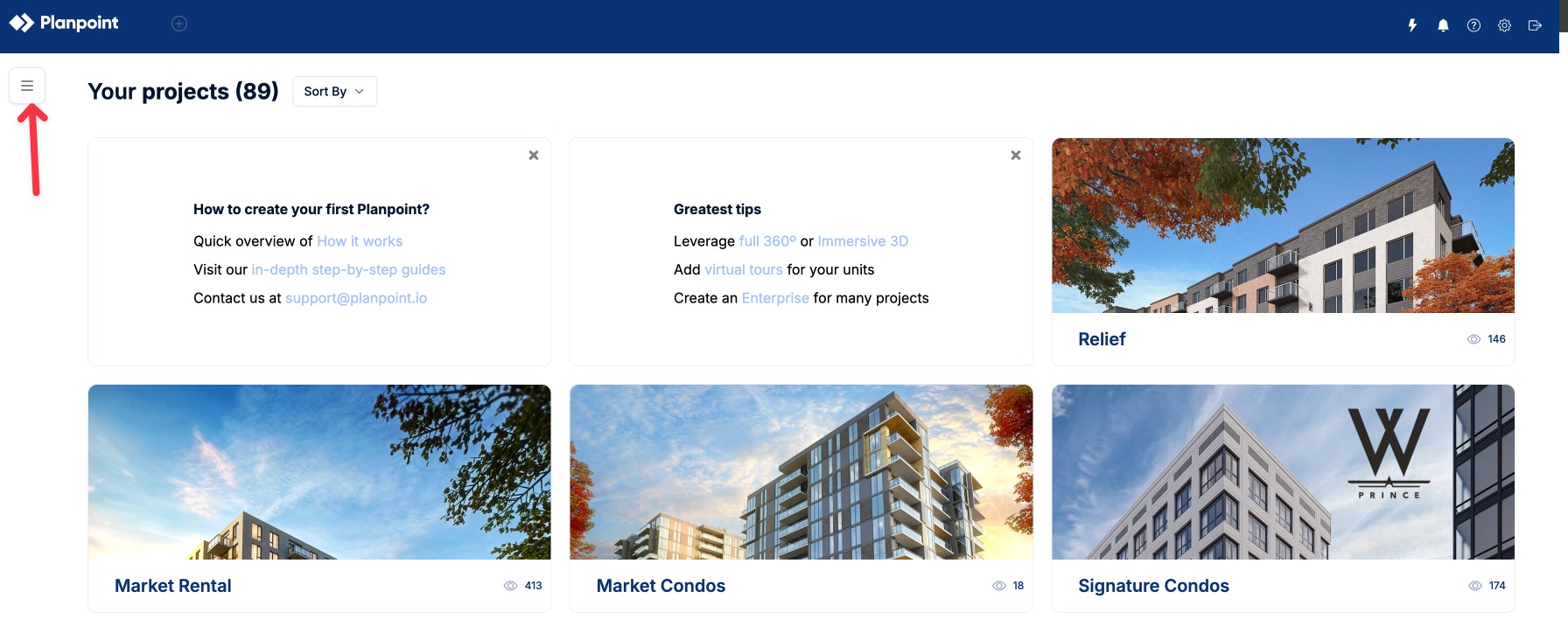
Step 2: Create your Enterprise project
To create you enterprise project, click on new enterprise. Assign a name for the enterprise and click on save and create.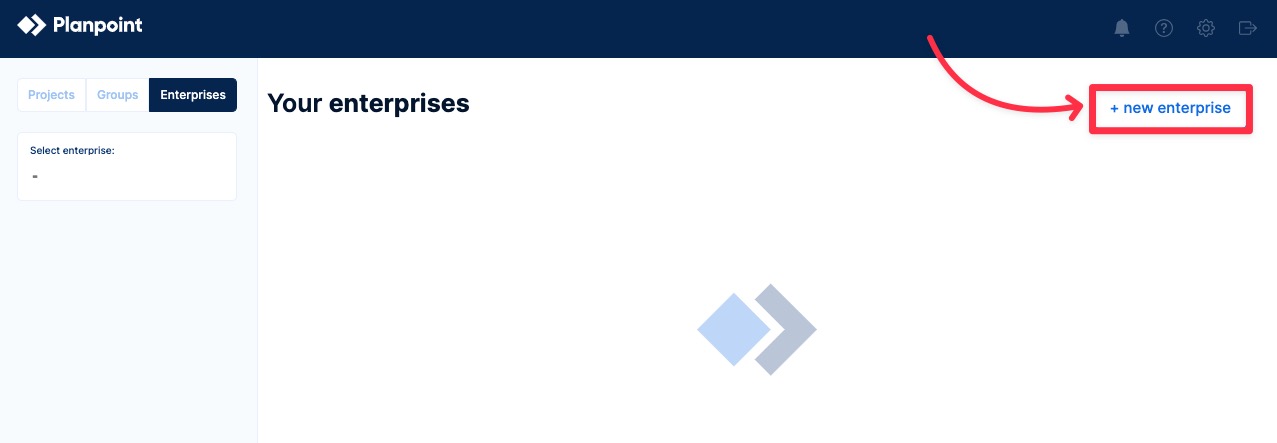

Step 3: Enterprise dashboard
Once you create your project or projects, you can observe them displayed in your enterprise dashboard. Then click on Settings to begin editing your enterprise project.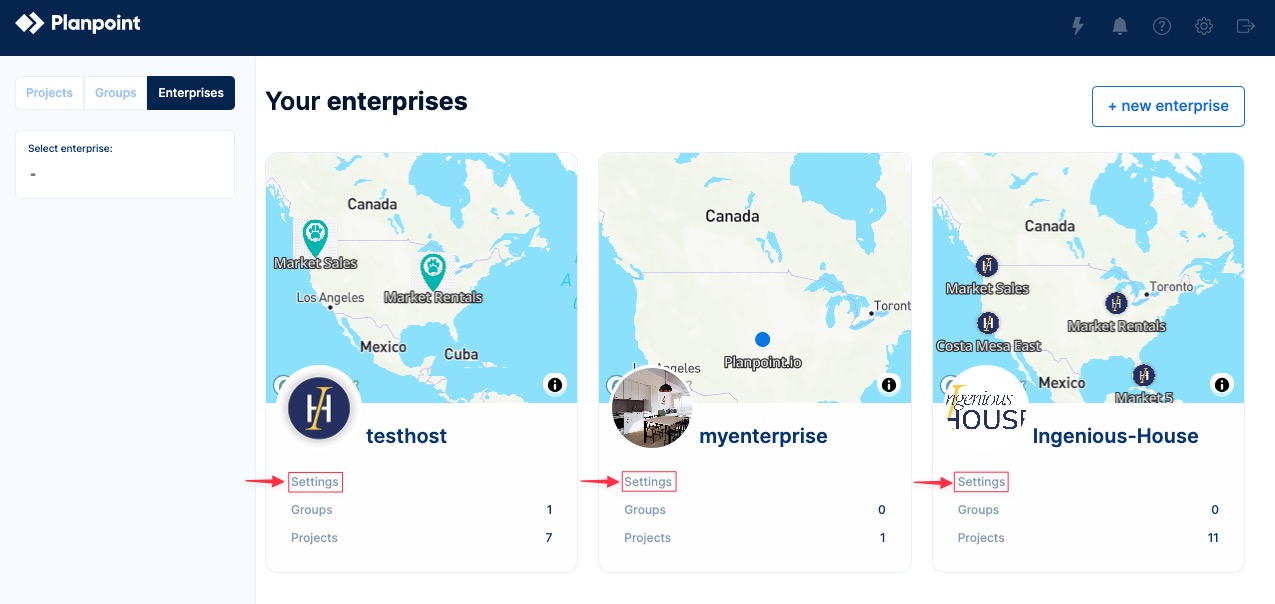
Step 4: Edit your new Enterprise project
Here, you can customize your enterprise project. You will be able to add your Enterprise image, edit the project’s name, assign the embed options and prices, set the availabilities, layouts, and colors you want to use. To finalize the project settings, you need to organize everything related to geolocation. Here you can select the map style, the target marker, the map point color and add directions if you wish.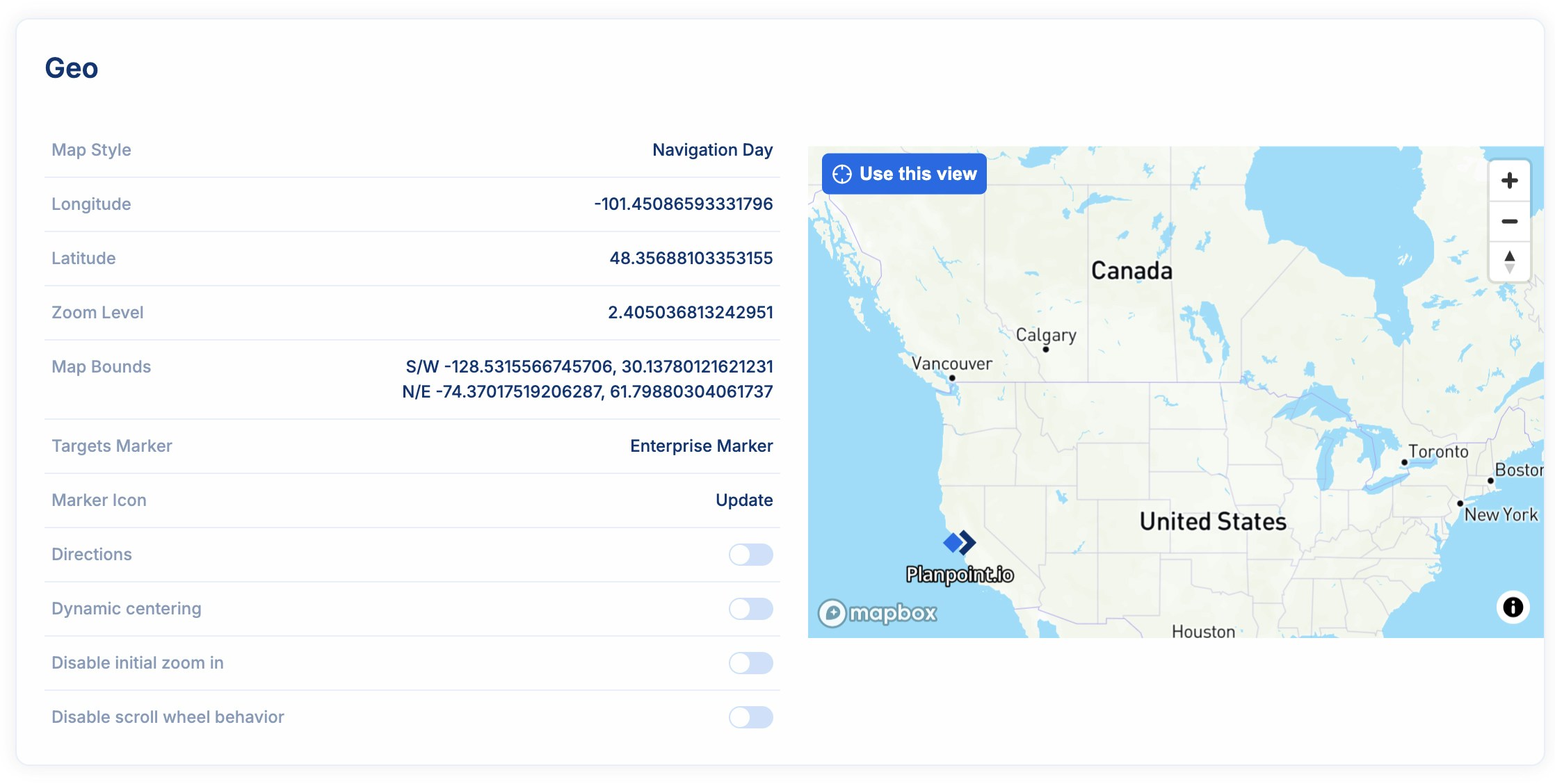
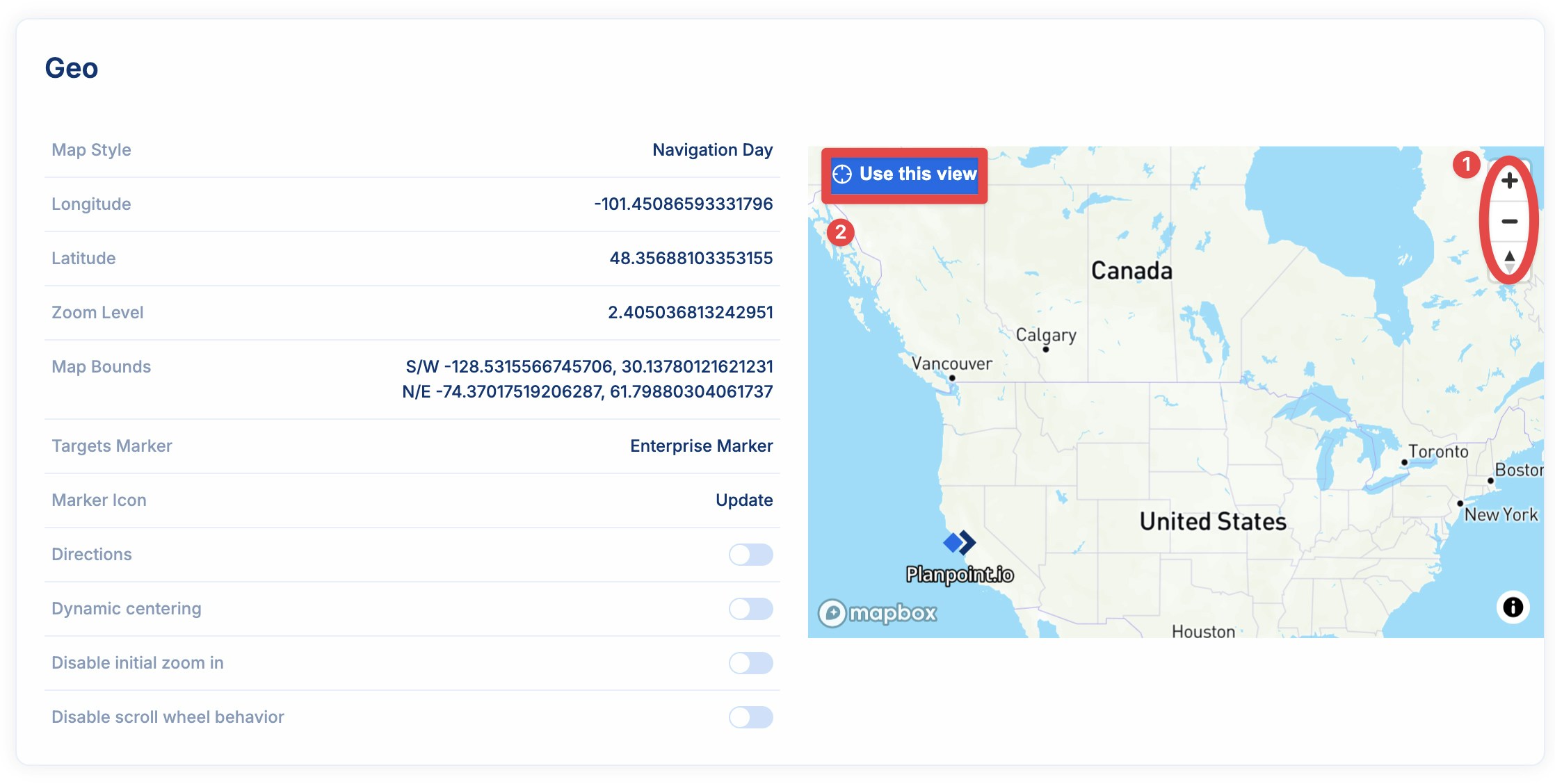
You can choose to turn the initial zoom-in and dynamic centering on or off for your enterprise project
Step 5: Searchbox Configuration
The Searchbox tab allows Enterprise administrators to configure how the Planpoint search experience behaves and which filters are available to end users.This section controls visibility, behavior, and layout of the embedded searchbox used across Enterprise environments.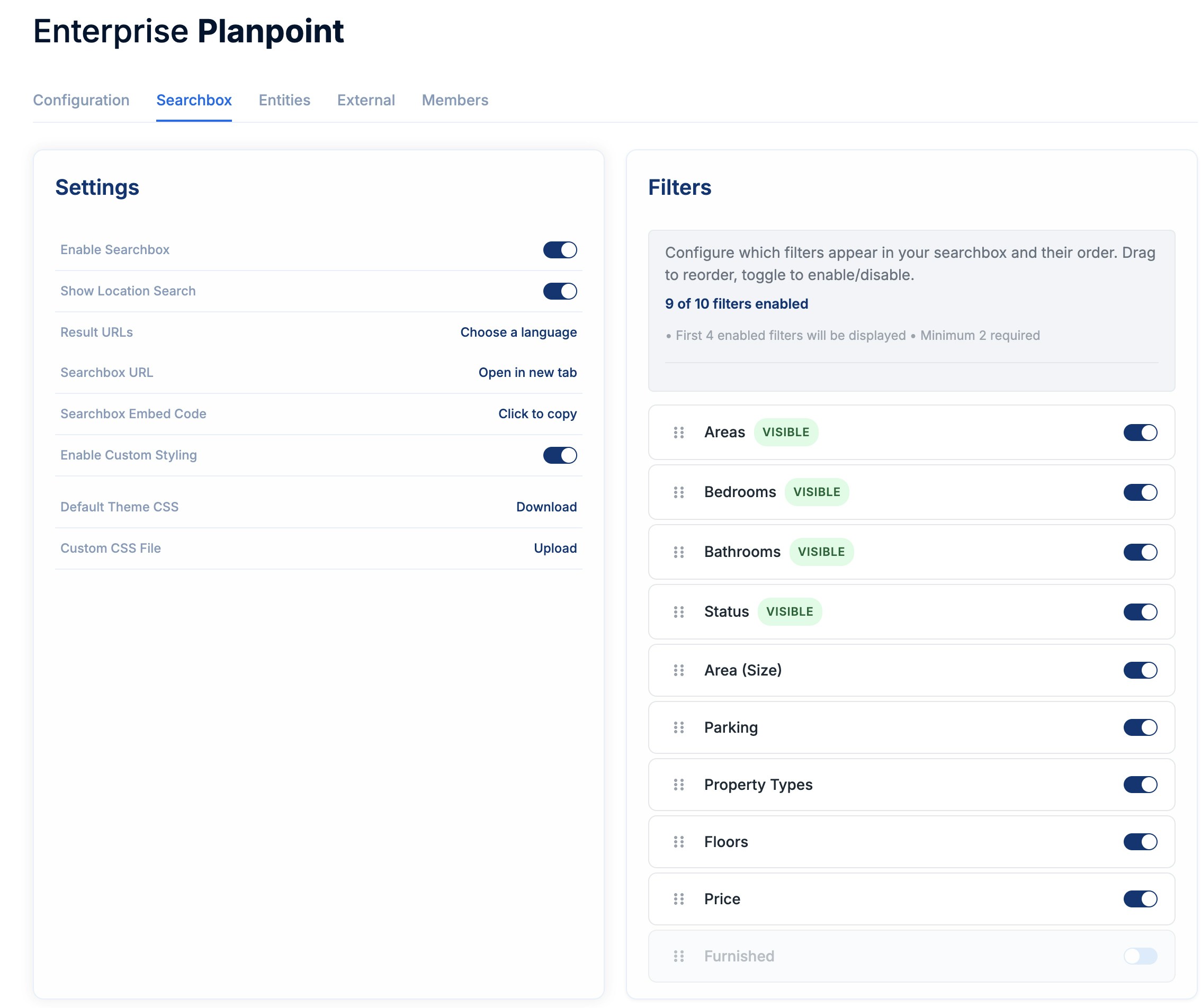
Searchbox Settings
The Settings panel on the left defines the core behavior of the searchbox:- Enable Searchbox: Turns the Enterprise seaarchbox on or off entirely.
- Show Locations Search: Enables location-based searching (e.g. cities, areas, neighborhoods) within the searchbox.
- Result URLs: Allows you to select the language used for result links.
- Searchbox URL: Opens the hosted searchbox in a new browser tab. Useful for testing or sharing.
- Searchbox Embed Code: Generates an embeddable snippet that can be copied and placed into external websites or applications.
- Enable Custom Styling: When enabled, allows advanced styling and branding customization for the search box using either the default theme CSS or a custom CSS file.
Filters Configuration
The filters panel on the right controls which filters appear in the searchbox and how they are displayed.Key rules:- A maximum of 10 filters can be enabled
- A minimum of 2 filters is required
- Only the first 4 enabled filters are displayed by default in the searchbox UI
- Filters can be reordered via drag-and-drop
- Each filter can be individually enabled or disabled