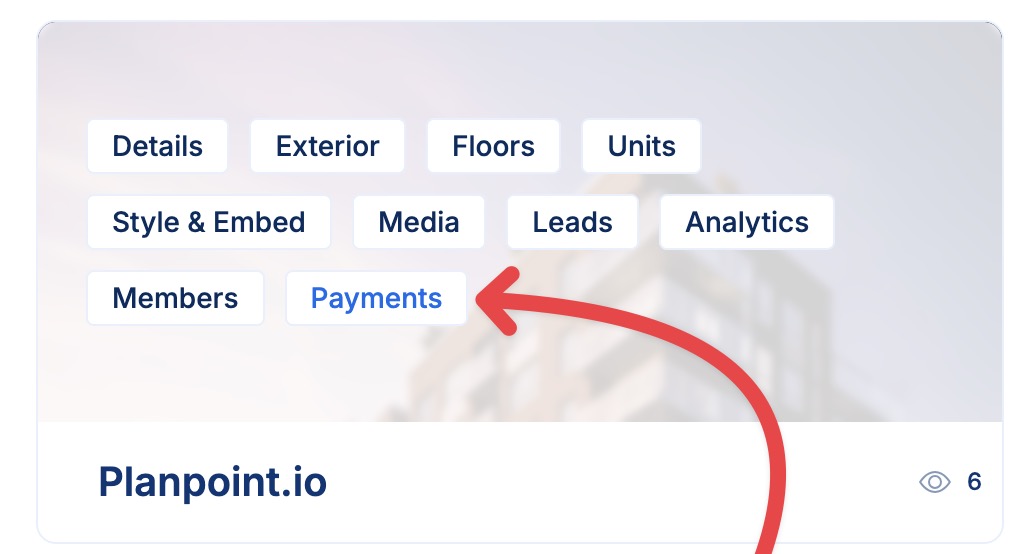
1. Select Your Project
Navigate to the project you wish to set up payments for and click on Payments.
2. Access the Payments Module
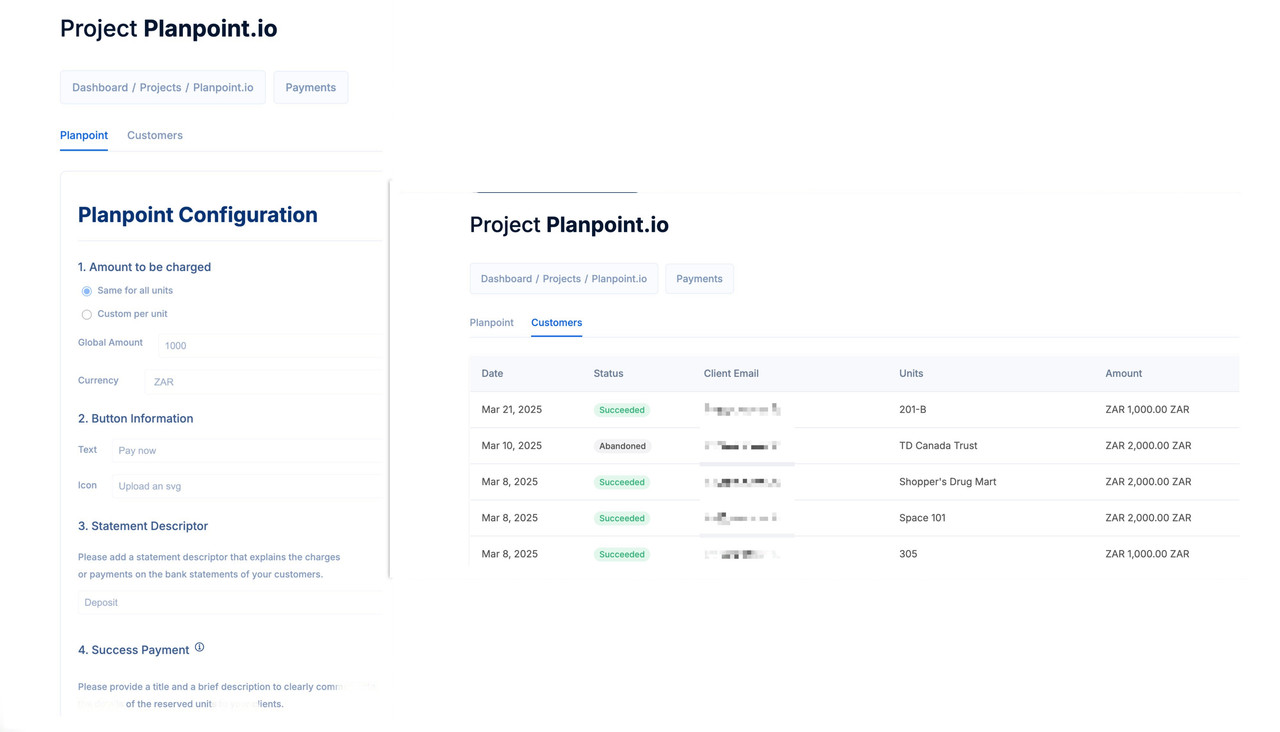
After clicking on Payments, you will be redirected to the Payments module.3. Configure Payment Settings
In the Payments module, you can customize the following settings:
1
Step 1
You will find two main sections in this module: the Planpoint section, where you can set up and customize your payments, and the Customers section, where you can view the history of all payments received.
2
Step 2
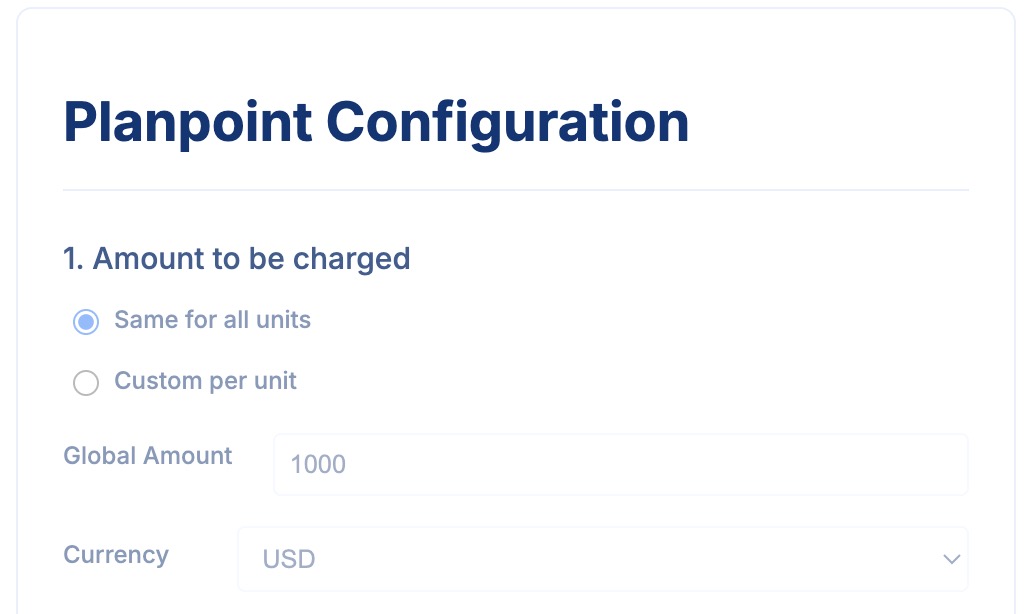
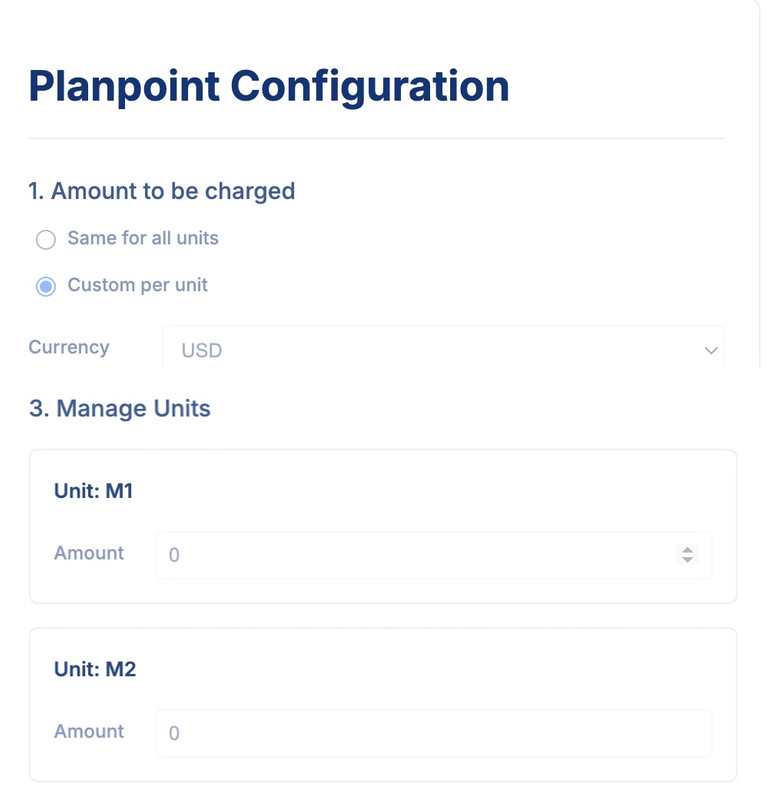
The Amount to be Charged allows you to specify the charge amount. You can set a uniform amount for all units or customize the amount per unit. Additionally, you can select from over 135 supported currencies.
Same payment amount for all units
Custom payment amounts per unit
3
Step 3
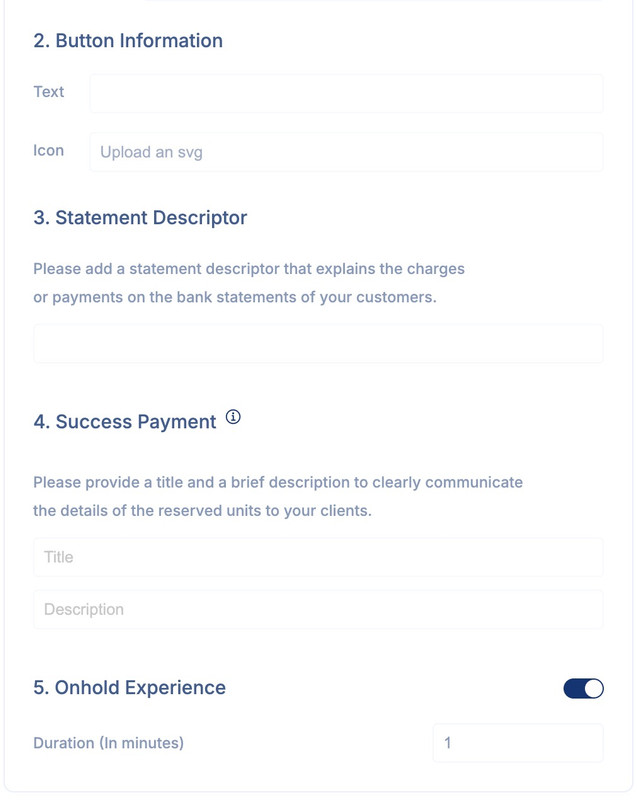
The Button Information section allows you to customize the text displayed on the payment button in the plan viewer. Additionally, you can upload an SVG file to use as an icon.
The Statement Descriptor explains the charges or payments that appear on your customers’ bank statements.
The Success Payment allows you to provide a title and description to communicate the details of the reserved unit to your clients.
Once the user clicks the Payment button, the unit status will switch to On Hold. This status is temporary and unique to this process. It will remain On Hold for X minutes or until the user completes the payment, at which point the status will update to Reserved or Purchased.
4
Step 4
Please note that you can enable or disable the payment options in the Settings module, under Style and Embed.
Buy Now can be enabled for individual units rather than the entire project. Go to Settings > Style & Embed, switch on Buy Now / Secure Above Asking, then use Units with Buy Now enabled to choose which units can use the payment flow.
Selected units show the launch price, Buy Now price, and Buy Now action.
Unselected units remain visible in the viewer but cannot use either Buy Now or the regular payment action while Buy Now is active.
A unit with its own payment option disabled remains unavailable for payment even when selected.
When enabling Buy Now on a new project, select at least one unit before making the flow available to buyers. Existing Buy Now configurations created before the unit selector continue to apply to all units until an explicit selection is saved.The Additional amount increases the displayed purchase price for Buy Now. It does not change the reservation fee configured in the Payments module.
The Custom Reservation Flow is a guided, 3-step flow you can share with visitors instead of (or alongside) the regular plan viewer: they pick their favourite unit(s), book a time through Calendly, then optionally pay a refundable deposit to confirm.
This section only appears once your project has a Calendly connection (Username and API Key) set up under Settings, in the Connections section.
1
Step 1 - Refundable deposit
Set the deposit amount and currency that will be charged at the end of the booking flow, through the payment provider already connected to your account (Stripe or PayPal, configured in your Account Settings under Payments). Set the amount to 0 to skip the payment step entirely and only require the Calendly booking.
2
Step 2 - Flow URL
Copy the Flow URL link to share directly with visitors, or add ?crf=1 to your project’s regular viewer URL to open it in the Custom Reservation Flow.
All deposits collected through the Custom Reservation Flow are recorded and listed under the Transactions tab of the Payments module.
{"docsConfig":{"theme":"mint","$schema":"https://mintlify.com/docs.json","name":"Planpoint Viewer Docs","colors":{"primary":"#0f68ea","light":"#f0f2f4","dark":"#0f68ea"},"logo":{"light":"https://mintcdn.com/planpoint/ygbSuV-niiq46Suq/logo/light.svg?fit=max\u0026auto=format\u0026n=ygbSuV-niiq46Suq\u0026q=85\u0026s=7799fb568d5d530467492a989784f18f","dark":"https://mintcdn.com/planpoint/nX9odRMiqNApqjCO/logo/dark.svg?fit=max\u0026auto=format\u0026n=nX9odRMiqNApqjCO\u0026q=85\u0026s=675e18f4bdd6a73fbb28bac2c6dfb407"},"favicon":"https://mintcdn.com/planpoint/nX9odRMiqNApqjCO/favicon.svg?fit=max\u0026auto=format\u0026n=nX9odRMiqNApqjCO\u0026q=85\u0026s=4e4b98d26a99a5cb92a601bb8d469c83","navbar":{"links":[{"href":"mailto:support@planpoint.io","label":"Support"}],"primary":{"type":"button","label":"Dashboard","href":"https://app.planpoint.io/login"}},"footer":{"socials":{"instagram":"https://www.instagram.com/planpoint.io","linkedin":"https://www.linkedin.com/company/68575632","github":"https://github.com/"}},"styling":{"latex":false},"navigation":{"pages":[]}},"deployment":{"deploymentMetadataValue":{"subdomain":"planpoint","hasAudioNarration":false,"actualSubdomain":"planpoint","customDomains":["viewerdocs.planpoint.io"],"gitSource":{"type":"github","owner":"planpoint-io","repo":"planpoint-viewerdocs","deployBranch":"main","contentDirectory":"","isPrivate":false,"mountPath":"","label":""},"chroma":{"liveDeploymentHistoryId":"6ad240b87414c95fc10fe53f","collectionId":"e116f7be-2851-481e-bb2b-d296c3a0caae","schemaVersion":"v3","latestBuiltDeploymentHistoryId":"6ad240b87414c95fc10fe53f"},"entitlements":{},"buildId":"6ad240b87414c95fc10fe53f","clientVersion":"0.0.3964","searchFilterCounts":[{"language":"default","tag":"Documentation","count":62},{"language":"default","tag":"General","count":36},{"language":"default","tag":"Advanced Features","count":21},{"language":"default","tag":"API ","count":20},{"language":"default","tag":"Creation","count":10},{"language":"default","tag":"SDK","count":6},{"language":"default","tag":"SDK Documentation","count":6},{"language":"default","tag":"Units","count":5},{"language":"default","tag":"Editing and Management","count":5},{"language":"default","tag":"Floors","count":4}]},"assistantConfig":{},"hasChatPermissions":false,"hasWebMcpPermissions":false,"toggles":[{"name":"kill-isr","enabled":true,"variant":{"name":"disabled","enabled":false,"feature_enabled":true},"impressionData":false},{"name":"agent-mintlify-slack","enabled":true,"variant":{"name":"disabled","enabled":false,"feature_enabled":true},"impressionData":false},{"name":"editor-v7-file-tree","enabled":true,"variant":{"name":"disabled","enabled":false,"feature_enabled":true},"impressionData":false},{"name":"agent-integrations-settings","enabled":true,"variant":{"name":"disabled","enabled":false,"feature_enabled":true},"impressionData":false},{"name":"automations-pr-grouping","enabled":true,"variant":{"name":"disabled","enabled":false,"feature_enabled":true},"impressionData":false},{"name":"custom-prefix","enabled":true,"variant":{"name":"disabled","enabled":false,"feature_enabled":true},"impressionData":false},{"name":"analytics-v7","enabled":true,"variant":{"name":"disabled","enabled":false,"feature_enabled":true},"impressionData":false},{"name":"user-flows-analytics","enabled":true,"variant":{"name":"disabled","enabled":false,"feature_enabled":true},"impressionData":false},{"name":"no-publish-flow","enabled":true,"variant":{"name":"disabled","enabled":false,"feature_enabled":true},"impressionData":false},{"name":"workos-onboarding","enabled":true,"variant":{"name":"disabled","enabled":false,"feature_enabled":true},"impressionData":false},{"name":"llms-txt-v2","enabled":true,"variant":{"name":"disabled","enabled":false,"feature_enabled":true},"impressionData":false},{"name":"pause-universal-search-reconcile","enabled":true,"variant":{"name":"disabled","enabled":false,"feature_enabled":true},"impressionData":false},{"name":"snapshot-serving-live","enabled":true,"variant":{"name":"disabled","enabled":false,"feature_enabled":true},"impressionData":false},{"name":"stripTemperatureMiddleware","enabled":true,"variant":{"name":"disabled","enabled":false,"feature_enabled":true},"impressionData":false},{"name":"per-site-search-delta","enabled":true,"variant":{"name":"disabled","enabled":false,"feature_enabled":true},"impressionData":false},{"name":"support-platform-pylon-zendesk","enabled":true,"variant":{"name":"disabled","enabled":false,"feature_enabled":true},"impressionData":false},{"name":"snapshot-serving","enabled":true,"variant":{"name":"disabled","enabled":false,"feature_enabled":true},"impressionData":false},{"name":"instant-rollback","enabled":true,"variant":{"name":"disabled","enabled":false,"feature_enabled":true},"impressionData":false},{"name":"granular-notifications-server","enabled":true,"variant":{"name":"disabled","enabled":false,"feature_enabled":true},"impressionData":false},{"name":"granular-notifications","enabled":true,"variant":{"name":"disabled","enabled":false,"feature_enabled":true},"impressionData":false},{"name":"editor-private-page-search","enabled":true,"variant":{"name":"disabled","enabled":false,"feature_enabled":true},"impressionData":false},{"name":"automations-fable","enabled":true,"variant":{"name":"disabled","enabled":false,"feature_enabled":true},"impressionData":false},{"name":"fixed-ai-action-pricing","enabled":true,"variant":{"name":"disabled","enabled":false,"feature_enabled":true},"impressionData":false},{"name":"automation-resolve-merge-conflict","enabled":true,"variant":{"name":"disabled","enabled":false,"feature_enabled":true},"impressionData":false},{"name":"scoped-publishing","enabled":true,"variant":{"name":"disabled","enabled":false,"feature_enabled":true},"impressionData":false},{"name":"mintql","enabled":true,"variant":{"name":"disabled","enabled":false,"feature_enabled":true},"impressionData":false},{"name":"page-level-analytics","enabled":true,"variant":{"name":"disabled","enabled":false,"feature_enabled":true},"impressionData":false},{"name":"editor-version-history-v2","enabled":true,"variant":{"name":"disabled","enabled":false,"feature_enabled":true},"impressionData":false},{"name":"editor-nav-generations","enabled":true,"variant":{"name":"disabled","enabled":false,"feature_enabled":true},"impressionData":false},{"name":"billing-page-v2","enabled":true,"variant":{"name":"disabled","enabled":false,"feature_enabled":true},"impressionData":false},{"name":"workspace-projects","enabled":true,"variant":{"name":"disabled","enabled":false,"feature_enabled":true},"impressionData":false},{"name":"assistant-v5","enabled":true,"variant":{"name":"disabled","enabled":false,"feature_enabled":true},"impressionData":false},{"name":"byok-sep-25","enabled":true,"variant":{"name":"disabled","enabled":false,"feature_enabled":true},"impressionData":false},{"name":"fork-pr-previews","enabled":true,"variant":{"name":"disabled","enabled":false,"feature_enabled":true},"impressionData":false},{"name":"revalidation-jwt","enabled":true,"variant":{"name":"disabled","enabled":false,"feature_enabled":true},"impressionData":false},{"name":"vite-origin","enabled":true,"variant":{"name":"disabled","enabled":false,"feature_enabled":true},"impressionData":false},{"name":"editor-agent-model-picker","enabled":true,"variant":{"name":"disabled","enabled":false,"feature_enabled":true},"impressionData":false},{"name":"billing-updated-9-15","enabled":true,"variant":{"name":"disabled","enabled":false,"feature_enabled":true},"impressionData":false},{"name":"hobby-abuse-scan","enabled":true,"variant":{"name":"disabled","enabled":false,"feature_enabled":true},"impressionData":false},{"name":"dashboard-inbox","enabled":true,"variant":{"name":"disabled","enabled":false,"feature_enabled":true},"impressionData":false}],"isAtlas":false,"googleFontsInlined":false},"customCss":[],"page":{"pagePath":"payments","slug":"/payments","pageMetadata":{"title":"Payments","description":"Easily set up and accept payments for deposits and reservations in over 135 currencies and 40+ payment methods","href":"/payments"},"description":{"compiledSource":"\"use strict\";\nconst {jsx: _jsx} = arguments[0];\nconst {useMDXComponents: _provideComponents} = arguments[0];\nfunction _createMdxContent(props) {\n const _components = {\n p: \"p\",\n ..._provideComponents(),\n ...props.components\n };\n return _jsx(_components.p, {\n children: \"Easily set up and accept payments for deposits and reservations in over 135 currencies and 40+ payment methods\"\n });\n}\nfunction MDXContent(props = {}) {\n const {wrapper: MDXLayout} = {\n ..._provideComponents(),\n ...props.components\n };\n return MDXLayout ? _jsx(MDXLayout, {\n ...props,\n children: _jsx(_createMdxContent, {\n ...props\n })\n }) : _createMdxContent(props);\n}\nreturn {\n default: MDXContent\n};\n","frontmatter":{},"scope":{}},"pageType":"default","mdx":{"mdxSource":{"compiledSource":"\"use strict\";const{Fragment:_Fragment,jsx:_jsx,jsxs:_jsxs}=arguments[0];const{useMDXComponents:_provideComponents}=arguments[0];function _createMdxContent(props){const _components={br:`br`,code:`code`,li:`li`,p:`p`,strong:`strong`,ul:`ul`,..._provideComponents(),...props.components},{Frame,Heading,Note,OptimizedImage,Step,Steps}=_components;if(!Frame)_missingMdxReference(`Frame`,true);if(!Heading)_missingMdxReference(`Heading`,true);if(!Note)_missingMdxReference(`Note`,true);if(!OptimizedImage)_missingMdxReference(`OptimizedImage`,true);if(!Step)_missingMdxReference(`Step`,true);if(!Steps)_missingMdxReference(`Steps`,true);return _jsxs(_Fragment,{children:[_jsx(_components.p,{children:`Setting up your payments is straightforward, and best of all, you can customize various aspects of the payment process, as outlined below.`}),`\n`,_jsx(Heading,{level:`3`,id:`how-to-set-up-your-payments`,children:`How to Set Up Your Payments`}),`\n`,_jsxs(_components.p,{children:[_jsx(_components.strong,{children:`1. Select Your Project`}),_jsx(_components.br,{}),`\n`,`Navigate to the project you wish to set up payments for and click on `,_jsx(_components.strong,{children:`Payments`}),`.`]}),`\n`,_jsx(Frame,{children:_jsx(OptimizedImage,{src:`https://i.postimg.cc/ydQh6wjv/payments-1.jpg`})}),`\n`,_jsxs(_components.p,{children:[_jsx(_components.strong,{children:`2. Access the Payments Module`}),_jsx(_components.br,{}),`\n`,`After clicking on `,_jsx(_components.strong,{children:`Payments`}),`, you will be redirected to the Payments module.`]}),`\n`,_jsxs(_components.p,{children:[_jsx(_components.strong,{children:`3. Configure Payment Settings`}),_jsx(_components.br,{}),`\n`,`In the Payments module, you can customize the following settings:`]}),`\n`,_jsxs(Steps,{children:[_jsxs(Step,{title:`Step 1`,children:[_jsx(_components.p,{children:`You will find two main sections in this module: the Planpoint section, where you can set up and customize your payments, and the Customers section, where you can view the history of all payments received.`}),_jsx(Frame,{children:_jsx(OptimizedImage,{src:`https://i.postimg.cc/br4BrGgC/payments-2.jpg`})})]}),_jsxs(Step,{title:`Step 2`,children:[_jsxs(_components.p,{children:[`The `,_jsx(_components.strong,{children:`Amount to be Charged`}),` allows you to specify the charge amount. You can set a uniform amount for all units or customize the amount per unit. Additionally, you can select from over 135 supported currencies.`]}),_jsx(Frame,{caption:`Same payment amount for all units`,children:_jsx(OptimizedImage,{src:`https://i.postimg.cc/HkHWSj41/payments-3.jpg`})}),_jsx(Frame,{caption:`Custom payment amounts per unit`,children:_jsx(OptimizedImage,{src:`https://i.postimg.cc/zDK198fz/payments-4.jpg`})})]}),_jsx(Step,{title:`Step 3`,children:_jsxs(_components.p,{children:[`The `,_jsx(_components.strong,{children:`Button Information`}),` section allows you to customize the text displayed on the payment button in the plan viewer. Additionally, you can upload an SVG file to use as an icon.\nThe `,_jsx(_components.strong,{children:`Statement Descriptor`}),` explains the charges or payments that appear on your customers’ bank statements.\nThe `,_jsx(_components.strong,{children:`Success Payment`}),` allows you to provide a title and description to communicate the details of the reserved unit to your clients.\nOnce the user clicks the Payment button, the unit status will switch to `,_jsx(_components.strong,{children:`On Hold`}),`. This status is temporary and unique to this process. It will remain On Hold for X minutes or until the user completes the payment, at which point the status will update to Reserved or Purchased.`]})}),_jsx(Step,{title:`Step 4`,children:_jsx(Frame,{children:_jsx(OptimizedImage,{src:`https://i.postimg.cc/MpWtm2HK/payments-5.jpg`})})})]}),`\n`,_jsx(Note,{children:`Please note that you can enable or disable the payment options in the Settings module, under Style and Embed.`}),`\n`,_jsx(Heading,{level:`2`,id:`buy-now-/-secure-above-asking`,children:`Buy Now / Secure Above Asking`}),`\n`,_jsxs(_components.p,{children:[`Buy Now can be enabled for individual units rather than the entire project. Go to `,_jsx(_components.strong,{children:`Settings > Style \u0026 Embed`}),`, switch on `,_jsx(_components.strong,{children:`Buy Now / Secure Above Asking`}),`, then use `,_jsx(_components.strong,{children:`Units with Buy Now enabled`}),` to choose which units can use the payment flow.`]}),`\n`,_jsxs(_components.ul,{children:[`\n`,_jsx(_components.li,{children:`Selected units show the launch price, Buy Now price, and Buy Now action.`}),`\n`,_jsx(_components.li,{children:`Unselected units remain visible in the viewer but cannot use either Buy Now or the regular payment action while Buy Now is active.`}),`\n`,_jsx(_components.li,{children:`A unit with its own payment option disabled remains unavailable for payment even when selected.`}),`\n`]}),`\n`,_jsx(_components.p,{children:`When enabling Buy Now on a new project, select at least one unit before making the flow available to buyers. Existing Buy Now configurations created before the unit selector continue to apply to all units until an explicit selection is saved.`}),`\n`,_jsxs(_components.p,{children:[`The `,_jsx(_components.strong,{children:`Additional amount`}),` increases the displayed purchase price for Buy Now. It does not change the reservation fee configured in the Payments module.`]}),`\n`,_jsx(Heading,{level:`2`,id:`custom-reservation-flow-crf`,children:`Custom Reservation Flow (CRF)`}),`\n`,_jsxs(_components.p,{children:[`The `,_jsx(_components.strong,{children:`Custom Reservation Flow`}),` is a guided, 3-step flow you can share with visitors instead of (or alongside) the regular plan viewer: they pick their favourite unit(s), book a time through Calendly, then optionally pay a refundable deposit to confirm.`]}),`\n`,_jsxs(Note,{children:[`This section only appears once your project has a Calendly connection (`,_jsx(_components.strong,{children:`Username`}),` and `,_jsx(_components.strong,{children:`API Key`}),`) set up under Settings, in the Connections section.`]}),`\n`,_jsxs(Steps,{children:[_jsx(Step,{title:`Step 1 - Refundable deposit`,children:_jsxs(_components.p,{children:[`Set the deposit amount and currency that will be charged at the end of the booking flow, through the payment provider already connected to your account (Stripe or PayPal, configured in your Account Settings under Payments). Set the amount to `,_jsx(_components.strong,{children:`0`}),` to skip the payment step entirely and only require the Calendly booking.`]})}),_jsx(Step,{title:`Step 2 - Flow URL`,children:_jsxs(_components.p,{children:[`Copy the `,_jsx(_components.strong,{children:`Flow URL`}),` link to share directly with visitors, or add `,_jsx(_components.code,{children:`?crf=1`}),` to your project’s regular viewer URL to open it in the Custom Reservation Flow.`]})})]}),`\n`,_jsxs(_components.p,{children:[`All deposits collected through the Custom Reservation Flow are recorded and listed under the `,_jsx(_components.strong,{children:`Transactions`}),` tab of the Payments module.`]})]})}function MDXContent(props={}){const{wrapper:MDXLayout}={..._provideComponents(),...props.components};return MDXLayout?_jsx(MDXLayout,{...props,children:_jsx(_createMdxContent,{...props})}):_createMdxContent(props)}return{default:MDXContent};function _missingMdxReference(id,component){throw new Error(`Expected `+(component?`component`:`object`)+\" `\"+id+\"` to be defined: you likely forgot to import, pass, or provide it.\")}","frontmatter":{},"scope":{"config":{},"pageMetadata":{"title":"Payments","description":"Easily set up and accept payments for deposits and reservations in over 135 currencies and 40+ payment methods","href":"/payments"}}},"mdxSourceWithNoJs":null},"mdxExtracts":{"tableOfContents":[{"title":"How to Set Up Your Payments","slug":"how-to-set-up-your-payments","depth":3,"children":[]},{"title":"Buy Now / Secure Above Asking","slug":"buy-now-/-secure-above-asking","depth":2,"children":[]},{"title":"Custom Reservation Flow (CRF)","slug":"custom-reservation-flow-crf","depth":2,"children":[]}],"codeExamples":{}},"jsLinks":[],"subdomain":"planpoint","siteName":"Planpoint Viewer Docs","title":"Payments - Planpoint Viewer Docs","navMaps":{"firstHrefInVersion":{},"firstHrefInLanguage":{}},"lastModified":"2026-08-31T15:36:36.289Z","originalFileLocation":"payments.mdx"},"headHtml":"\u003cscript data-mint-head>(function(){var d=document.documentElement,p=null;if(!p){try{p=localStorage.getItem(\"isDarkMode\")}catch(e){}if(p==='true')p='dark';else if(p==='false')p='light';if(p!=='light'\u0026\u0026p!=='dark'\u0026\u0026p!=='system')p=\"system\"}var r=p==='system'?(matchMedia(\"(prefers-color-scheme: dark)\").matches?'dark':'light'):p;d.classList.remove(r==='dark'?'light':'dark');d.classList.add(r);d.setAttribute(\"data-theme-preference\",p)})();\u003c/script>\u003cmeta data-mint-head name=\"description\" content=\"Easily set up and accept payments for deposits and reservations in over 135 currencies and 40+ payment methods\">\u003cmeta data-mint-head name=\"application-name\" content=\"Planpoint Viewer Docs\">\u003cmeta data-mint-head name=\"generator\" content=\"Mintlify\">\u003clink data-mint-head rel=\"icon\" type=\"image/png\" sizes=\"192x192\" href=\"/mintlify-assets/_mintlify/favicons/planpoint/I4H3ZgKgth9zmV2U/_generated/favicon/android-chrome-192x192.png\" media=\"(prefers-color-scheme: light)\">\u003clink data-mint-head rel=\"apple-touch-icon\" type=\"image/png\" sizes=\"180x180\" href=\"/mintlify-assets/_mintlify/favicons/planpoint/I4H3ZgKgth9zmV2U/_generated/favicon/apple-touch-icon.png\">\u003clink data-mint-head rel=\"icon\" type=\"image/png\" sizes=\"16x16\" href=\"/mintlify-assets/_mintlify/favicons/planpoint/I4H3ZgKgth9zmV2U/_generated/favicon/favicon-16x16.png\" media=\"(prefers-color-scheme: light)\">\u003clink data-mint-head rel=\"icon\" type=\"image/png\" sizes=\"32x32\" href=\"/mintlify-assets/_mintlify/favicons/planpoint/I4H3ZgKgth9zmV2U/_generated/favicon/favicon-32x32.png\" media=\"(prefers-color-scheme: light)\">\u003clink data-mint-head rel=\"shortcut icon\" type=\"image/x-icon\" href=\"/mintlify-assets/_mintlify/favicons/planpoint/I4H3ZgKgth9zmV2U/_generated/favicon/favicon.ico\" media=\"(prefers-color-scheme: light)\">\u003clink data-mint-head rel=\"icon\" type=\"image/png\" sizes=\"192x192\" href=\"/mintlify-assets/_mintlify/favicons/planpoint/I4H3ZgKgth9zmV2U/_generated/favicon-dark/android-chrome-192x192.png\" media=\"(prefers-color-scheme: dark)\">\u003clink data-mint-head rel=\"icon\" type=\"image/png\" sizes=\"16x16\" href=\"/mintlify-assets/_mintlify/favicons/planpoint/I4H3ZgKgth9zmV2U/_generated/favicon-dark/favicon-16x16.png\" media=\"(prefers-color-scheme: dark)\">\u003clink data-mint-head rel=\"icon\" type=\"image/png\" sizes=\"32x32\" href=\"/mintlify-assets/_mintlify/favicons/planpoint/I4H3ZgKgth9zmV2U/_generated/favicon-dark/favicon-32x32.png\" media=\"(prefers-color-scheme: dark)\">\u003clink data-mint-head rel=\"shortcut icon\" type=\"image/x-icon\" href=\"/mintlify-assets/_mintlify/favicons/planpoint/I4H3ZgKgth9zmV2U/_generated/favicon-dark/favicon.ico\" media=\"(prefers-color-scheme: dark)\">\u003cmeta data-mint-head property=\"og:title\" content=\"Payments - Planpoint Viewer Docs\">\u003cmeta data-mint-head property=\"og:description\" content=\"Easily set up and accept payments for deposits and reservations in over 135 currencies and 40+ payment methods\">\u003cmeta data-mint-head property=\"og:site_name\" content=\"Planpoint Viewer Docs\">\u003cmeta data-mint-head property=\"og:url\" content=\"https://viewerdocs.planpoint.io/payments\">\u003cmeta data-mint-head property=\"og:type\" content=\"website\">\u003cmeta data-mint-head property=\"og:image\" content=\"https://planpoint.mintlify.app/_mintlify/api/og/v2?division=Advanced+Features\u0026amp;title=Payments\u0026amp;description=Easily+set+up+and+accept+payments+for+deposits+and+reservations+in+over+135+currencies+and+40%2B+payment+methods\u0026amp;theme=0ba8030471b2f14b1bff3f40\u0026amp;signature=ac44b3779b183dc70cc3dd42556b5ea2fa4bc31e3fdf15844fe7418383bbfb43\">\u003cmeta data-mint-head property=\"og:image:width\" content=\"1200\">\u003cmeta data-mint-head property=\"og:image:height\" content=\"630\">\u003cmeta data-mint-head name=\"twitter:card\" content=\"summary_large_image\">\u003cmeta data-mint-head name=\"twitter:title\" content=\"Payments - Planpoint Viewer Docs\">\u003cmeta data-mint-head name=\"twitter:description\" content=\"Easily set up and accept payments for deposits and reservations in over 135 currencies and 40+ payment methods\">\u003cmeta data-mint-head name=\"twitter:image\" content=\"https://planpoint.mintlify.app/_mintlify/api/og/v2?division=Advanced+Features\u0026amp;title=Payments\u0026amp;description=Easily+set+up+and+accept+payments+for+deposits+and+reservations+in+over+135+currencies+and+40%2B+payment+methods\u0026amp;theme=0ba8030471b2f14b1bff3f40\u0026amp;signature=ac44b3779b183dc70cc3dd42556b5ea2fa4bc31e3fdf15844fe7418383bbfb43\">\u003cmeta data-mint-head name=\"twitter:image:width\" content=\"1200\">\u003cmeta data-mint-head name=\"twitter:image:height\" content=\"630\">\u003cmeta data-mint-head name=\"msapplication-config\" content=\"/mintlify-assets/_mintlify/favicons/planpoint/I4H3ZgKgth9zmV2U/_generated/favicon/browserconfig.xml\">\u003cmeta data-mint-head name=\"apple-mobile-web-app-title\" content=\"Planpoint Viewer Docs\">\u003cmeta data-mint-head name=\"msapplication-TileColor\" content=\"#0f68ea\">\u003clink data-mint-head rel=\"canonical\" href=\"https://viewerdocs.planpoint.io/payments\">\u003clink data-mint-head rel=\"alternate\" type=\"application/xml\" href=\"/sitemap.xml\">\u003clink data-mint-head rel=\"alternate\" type=\"text/markdown\" href=\"/payments.md\">\u003cscript data-mint-head type=\"application/ld+json\">{\"@context\":\"https://schema.org\",\"@graph\":[{\"@type\":\"Organization\",\"@id\":\"https://viewerdocs.planpoint.io/#organization\",\"name\":\"Planpoint Viewer Docs\",\"url\":\"https://viewerdocs.planpoint.io\",\"logo\":{\"@type\":\"ImageObject\",\"url\":\"https://mintcdn.com/planpoint/ygbSuV-niiq46Suq/logo/light.svg?fit=max\u0026auto=format\u0026n=ygbSuV-niiq46Suq\u0026q=85\u0026s=7799fb568d5d530467492a989784f18f\"}},{\"@type\":\"WebSite\",\"@id\":\"https://viewerdocs.planpoint.io#website\",\"name\":\"Planpoint Viewer Docs\",\"url\":\"https://viewerdocs.planpoint.io\",\"publisher\":{\"@id\":\"https://viewerdocs.planpoint.io/#organization\"}},{\"@type\":\"WebPage\",\"@id\":\"https://viewerdocs.planpoint.io/payments#webpage\",\"url\":\"https://viewerdocs.planpoint.io/payments\",\"name\":\"Payments\",\"description\":\"Easily set up and accept payments for deposits and reservations in over 135 currencies and 40+ payment methods\",\"dateModified\":\"2026-08-31T15:36:36.289Z\",\"isPartOf\":{\"@id\":\"https://viewerdocs.planpoint.io#website\"},\"breadcrumb\":{\"@id\":\"https://viewerdocs.planpoint.io/payments#breadcrumb\"}},{\"@type\":\"BreadcrumbList\",\"@id\":\"https://viewerdocs.planpoint.io/payments#breadcrumb\",\"itemListElement\":[{\"@type\":\"ListItem\",\"position\":1,\"name\":\"Advanced Features\",\"item\":\"https://viewerdocs.planpoint.io/multi-phase\"},{\"@type\":\"ListItem\",\"position\":2,\"name\":\"Payments\",\"item\":\"https://viewerdocs.planpoint.io/payments\"}]},{\"@type\":[\"Article\",\"TechArticle\"],\"@id\":\"https://viewerdocs.planpoint.io/payments#article\",\"headline\":\"Payments\",\"name\":\"Payments\",\"description\":\"Easily set up and accept payments for deposits and reservations in over 135 currencies and 40+ payment methods\",\"url\":\"https://viewerdocs.planpoint.io/payments\",\"mainEntityOfPage\":{\"@id\":\"https://viewerdocs.planpoint.io/payments#webpage\"},\"dateModified\":\"2026-08-31T15:36:36.289Z\",\"publisher\":{\"@id\":\"https://viewerdocs.planpoint.io/#organization\"},\"isPartOf\":{\"@id\":\"https://viewerdocs.planpoint.io#website\"}}]}\u003c/script>\u003cscript data-mint-head type=\"application/ld+json\">{\"@context\":\"https://schema.org\",\"@type\":\"WebSite\",\"name\":\"Planpoint Viewer Docs\",\"creator\":{\"@type\":\"Organization\",\"name\":\"Mintlify\",\"url\":\"https://mintlify.com\"}}\u003c/script>","siteName":"Planpoint Viewer Docs","nav":{"global":null,"anchors":[{"anchor":"Documentation","icon":"book-open","tabs":[{"tab":"General","groups":[{"group":"Creation","pages":[{"title":"Welcome","href":"/welcome"},{"title":"Checklist","href":"/checklist"},{"title":"Settings","href":"/settings"},{"title":"Exterior","href":"/exterior"},{"title":"Units","href":"/units"},{"title":"Collections","href":"/collections"},{"title":"Floors","href":"/floors"},{"title":"Media Gallery","href":"/media-gallery"},{"title":"Style \u0026 Embed","href":"/preview-embed"},{"title":"Form","href":"/documentation/general/advanced-features/forms"}]},{"group":"Editing and Management","pages":[{"title":"Change information","href":"/edit-info"},{"title":"Members","href":"/members"},{"title":"Themes","href":"/documentation/general/editing-and-management/themes"},{"title":"Colors","href":"/colors"},{"title":"Terminology","href":"/documentation/general/editing-and-management/terminology"}]},{"group":"Advanced Features","pages":[{"title":"Group project","href":"/multi-phase"},{"title":"Enterprise","href":"/enterprise-new"},{"title":"Enterprise Map \u0026 Points of Interest","href":"/enterprise-map-embed"},{"title":"360° project","href":"/360"},{"title":"Spotlight Mode","href":"/spotlight"},{"title":"Custom CSS","href":"/custom-css"},{"title":"Homes \u0026 Land","href":"/homes-land"},{"title":"Unit variants","href":"/unit-variants"},{"title":"Choice of Finishes","href":"/custom-finishes"},{"title":"Superframe \u0026 Touchscreen TVs","href":"/superframe"},{"title":"PostMessage Tracking","href":"/documentation/general/advanced-features/post-message"},{"title":"Analytics","href":"/analytics"},{"title":"Conversion Tracking","href":"/conversion-tracking"},{"title":"SEO indexing","href":"/documentation/general/advanced-features/untitled-page"},{"title":"Deep Linking to specific units","href":"/link-units"},{"title":"Amenities and parking","href":"/amenities-parkings"},{"title":"Custom buttons","href":"/custom-buttons"},{"title":"Allocations","href":"/allocations"},{"title":"Zapier Integration with Planpoint","href":"/zapier"},{"title":"Lock Screen","description":"The lock screen feature encourage visitors to share their information to gain access to your Planpoint before accessing the project plans. This approach ensures that your sales team can reach out to individuals showing interest in your project.","href":"/lock-screen"},{"title":"Payments","href":"/payments"}]}]},{"tab":"API ","pages":[{"title":"API ","href":"/api-documentation/introduction"}]},{"tab":"SDK","pages":[{"title":"SDK","href":"/sdk-documentation/introduction"}]}]},{"anchor":"New releases","icon":"newspaper","href":"https://www.planpoint.io/new-releases/updates"},{"anchor":"Main website","icon":"globe","href":"https://www.planpoint.io/"},{"anchor":"Support","icon":"envelope-dot","href":"mailto:support@planpoint.io"}]},"title":"Payments - Planpoint Viewer Docs","buildId":"dpl_HcHmUS6i3UwswnTHJUEdcTtwfdTQ","deploymentId":"dpl_HcHmUS6i3UwswnTHJUEdcTtwfdTQ","dynamics":["07c022d89b","a74be98ba7"],"chunks":["Frame-D1UCVuPB.js","DynamicMarkdown-Crwq6WG_.js","zoom-image-lightbox-CFBqa0On.js","lightbox-handle-r17bVUz3.js"]}