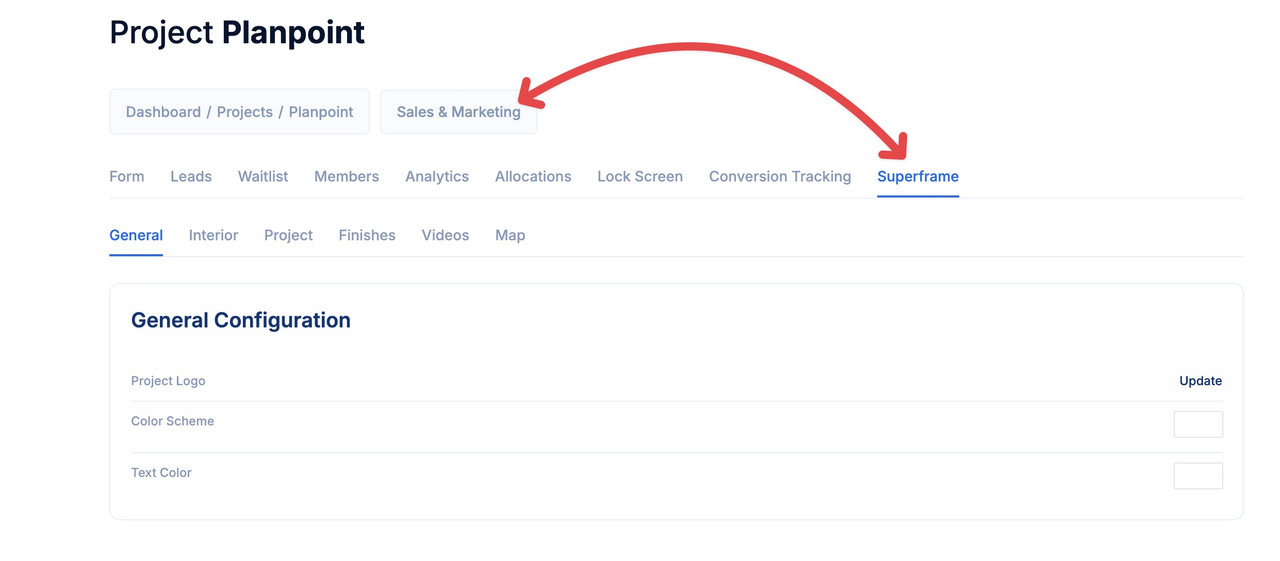
The Superframe section can be found in the Sales & Marketing module.
2
Step 2: General
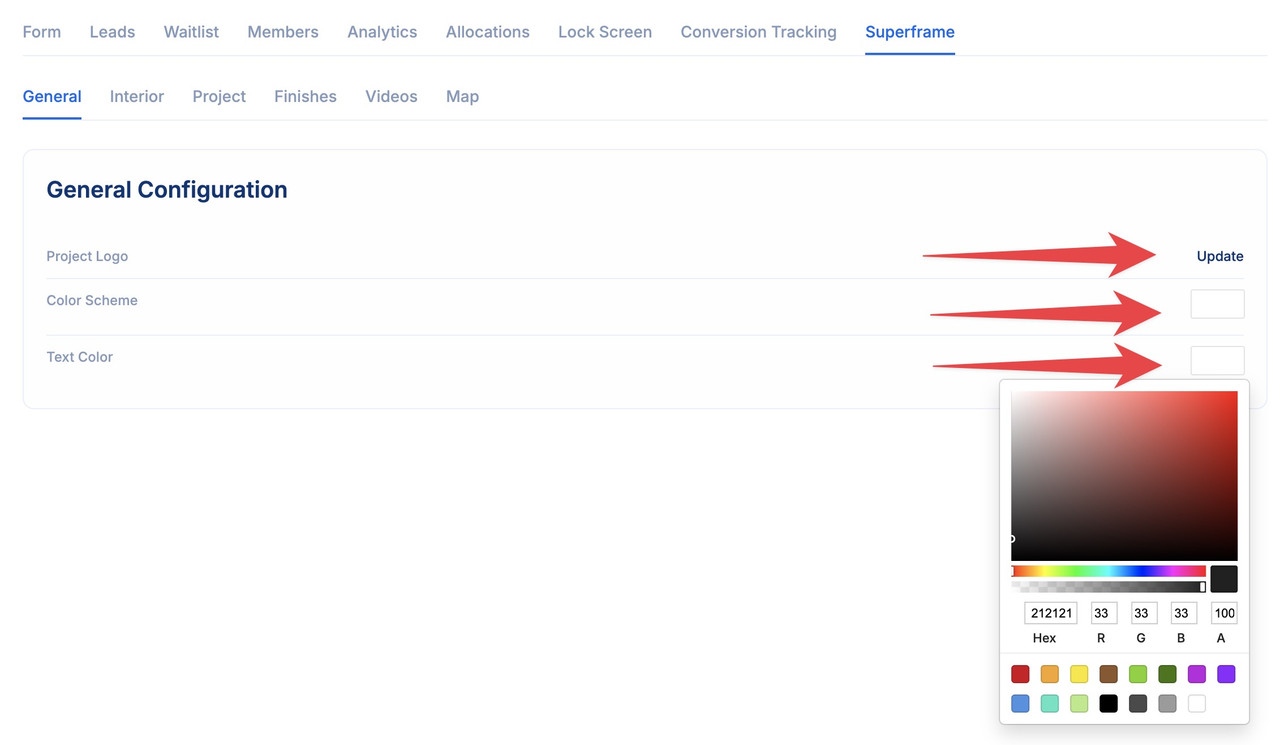
You can update the project logo displayed in the Superframe by simply browsing and uploading a file from your device. Additionally, you can customize the color scheme and text color to match your branding.
Choosing the colors here follows the same format as the colors settings.
3
Step 3: Interior
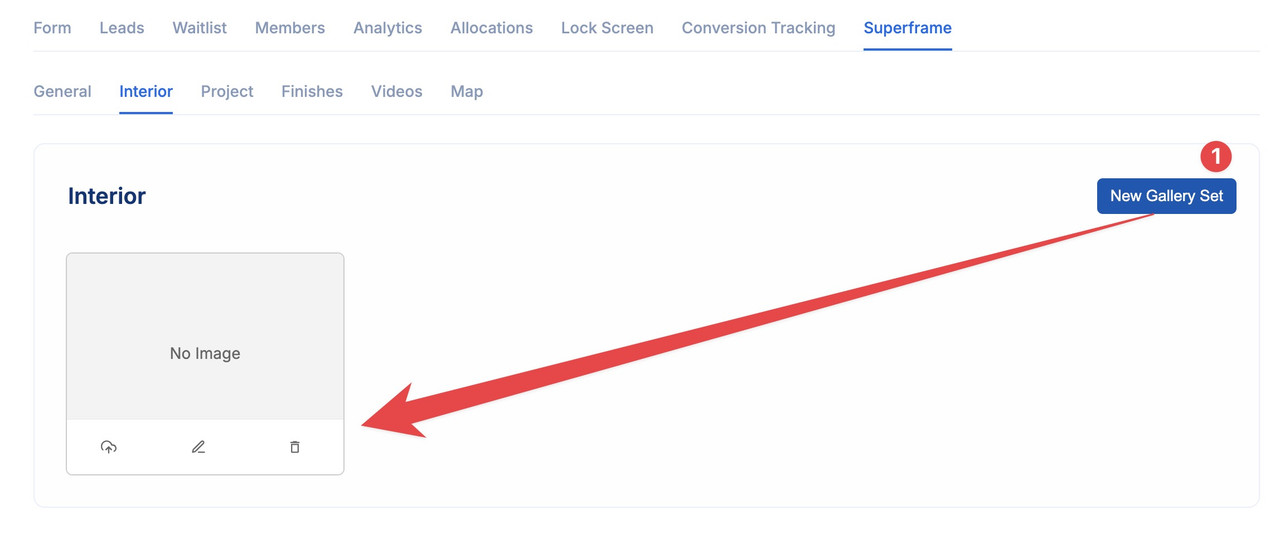
Here, you can divide the interior of the project into different rooms of the unit, allowing you to display each section separately. Please note that you can fully customize your project to suit your needs.
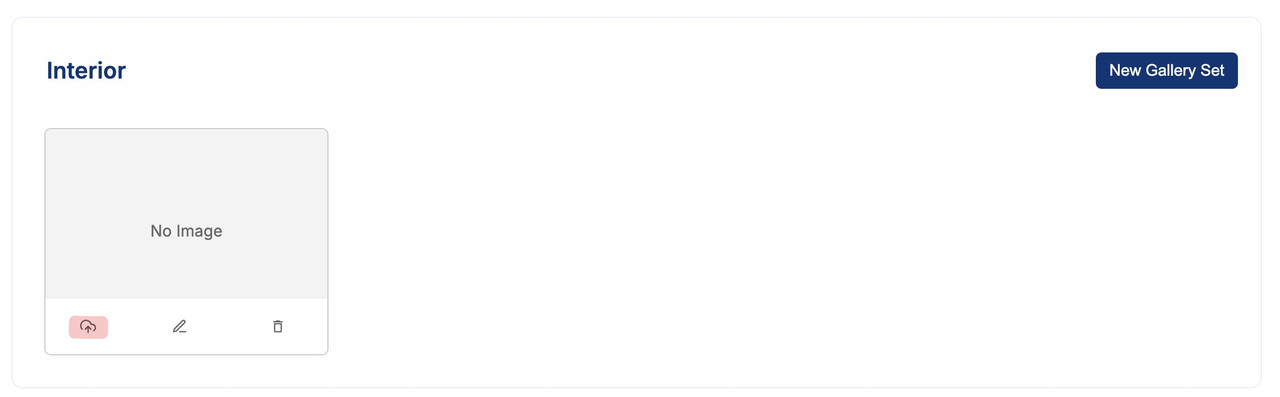
After adding a new gallery set, you’ll need to upload the main render for the room by clicking the cloud storage icon and selecting the file from your computer.
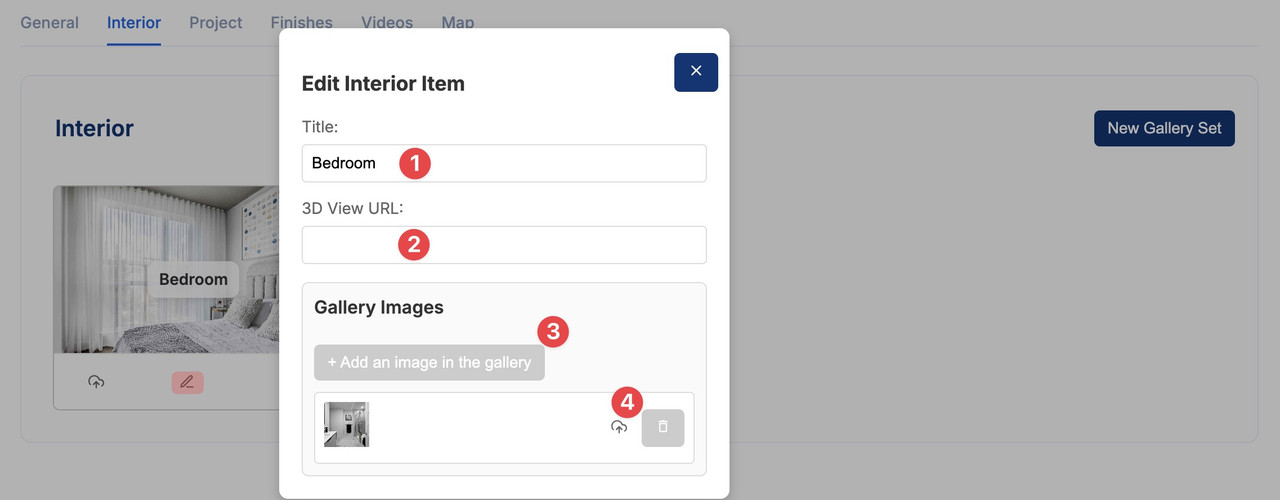
The edit button allows the user to add a title for the room, include a 3D tour link (if available), and upload the image gallery for this area.
After uploading the images, you can arrange their order as needed
You can also delete the gallery set by simply clicking the trash can icon.
4
Step 4: Project
In this section, you can add content related to the common areas of the project. It follows the same format as the previous section (interior).
5
Step 5: Finishes
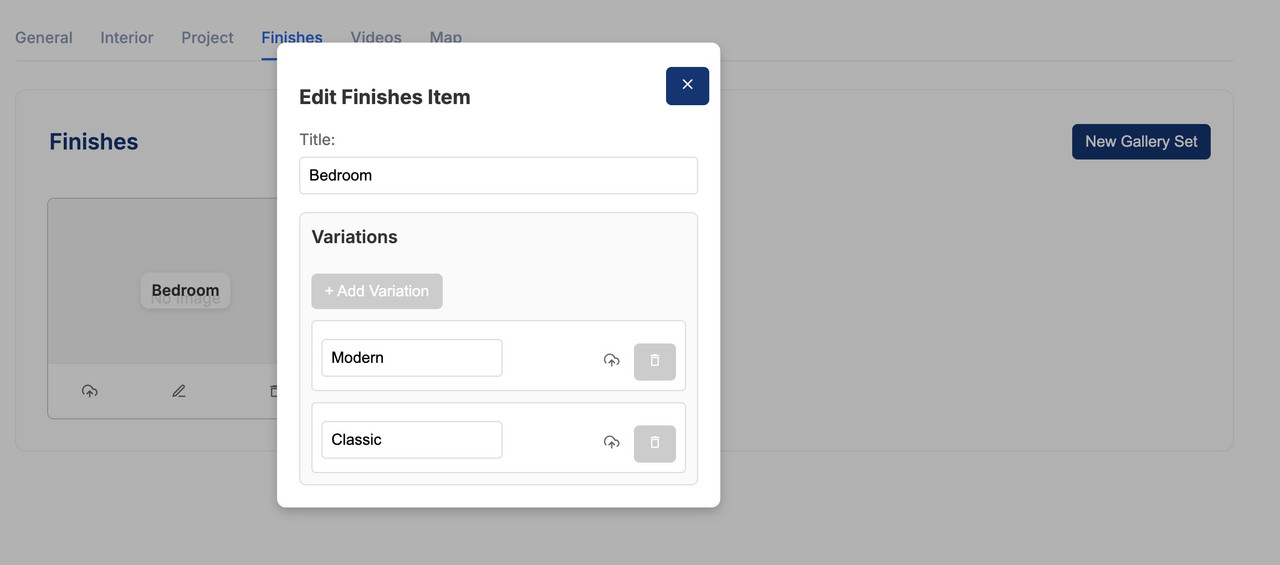
Simply add your choice of finishes to the project and edit the gallery set as demonstrated in the previous steps.
6
Step 6: Videos & Map
To add a video of the project or a map showing its location, simply insert the respective links. You can add multiple videos if needed.
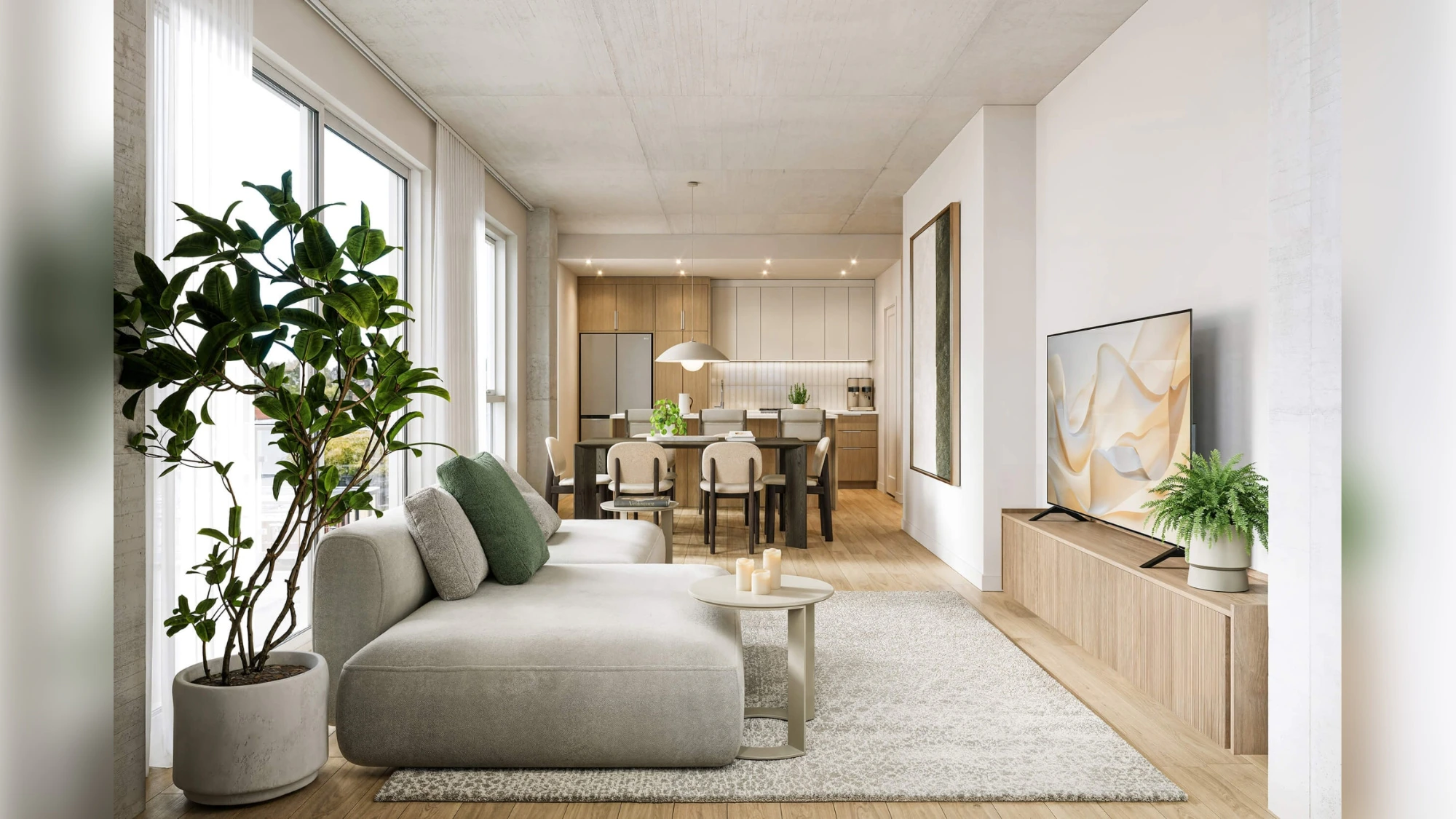
The aspect ratio for televisions is 16:9 and Planpoint Superframe will make your images fit the screen entirely.
Since most images and renders don’t follow this 16:9 ratio, your images might not appear in full.We recommend adjusting your images before importing. Here’s an example of a render that was adjusted to 16:9 ratio by adding blur on both sides:
Visits made on a Superframe screen are recorded separately from your public embed. In Analytics, use the Per Channel filter to compare Web and Superframe engagement.
{"docsConfig":{"theme":"mint","$schema":"https://mintlify.com/docs.json","name":"Planpoint Viewer Docs","colors":{"primary":"#0f68ea","light":"#f0f2f4","dark":"#0f68ea"},"logo":{"light":"https://mintcdn.com/planpoint/ygbSuV-niiq46Suq/logo/light.svg?fit=max\u0026auto=format\u0026n=ygbSuV-niiq46Suq\u0026q=85\u0026s=7799fb568d5d530467492a989784f18f","dark":"https://mintcdn.com/planpoint/nX9odRMiqNApqjCO/logo/dark.svg?fit=max\u0026auto=format\u0026n=nX9odRMiqNApqjCO\u0026q=85\u0026s=675e18f4bdd6a73fbb28bac2c6dfb407"},"favicon":"https://mintcdn.com/planpoint/nX9odRMiqNApqjCO/favicon.svg?fit=max\u0026auto=format\u0026n=nX9odRMiqNApqjCO\u0026q=85\u0026s=4e4b98d26a99a5cb92a601bb8d469c83","navbar":{"links":[{"href":"mailto:support@planpoint.io","label":"Support"}],"primary":{"type":"button","label":"Dashboard","href":"https://app.planpoint.io/login"}},"footer":{"socials":{"instagram":"https://www.instagram.com/planpoint.io","linkedin":"https://www.linkedin.com/company/68575632","github":"https://github.com/"}},"styling":{"latex":false},"navigation":{"pages":[]}},"deployment":{"deploymentMetadataValue":{"subdomain":"planpoint","hasAudioNarration":false,"actualSubdomain":"planpoint","customDomains":["viewerdocs.planpoint.io"],"gitSource":{"type":"github","owner":"planpoint-io","repo":"planpoint-viewerdocs","deployBranch":"main","contentDirectory":"","isPrivate":false,"mountPath":"","label":""},"chroma":{"liveDeploymentHistoryId":"6ad240b87414c95fc10fe53f","collectionId":"e116f7be-2851-481e-bb2b-d296c3a0caae","schemaVersion":"v3","latestBuiltDeploymentHistoryId":"6ad240b87414c95fc10fe53f"},"entitlements":{},"buildId":"6ad240b87414c95fc10fe53f","clientVersion":"0.0.3926","searchFilterCounts":[{"language":"default","tag":"Documentation","count":62},{"language":"default","tag":"General","count":36},{"language":"default","tag":"Advanced Features","count":21},{"language":"default","tag":"API ","count":20},{"language":"default","tag":"Creation","count":10},{"language":"default","tag":"SDK","count":6},{"language":"default","tag":"SDK Documentation","count":6},{"language":"default","tag":"Units","count":5},{"language":"default","tag":"Editing and Management","count":5},{"language":"default","tag":"Floors","count":4}]},"assistantConfig":{},"hasChatPermissions":false,"hasWebMcpPermissions":false,"toggles":[{"name":"kill-isr","enabled":true,"variant":{"name":"disabled","enabled":false,"feature_enabled":true},"impressionData":false},{"name":"agent-mintlify-slack","enabled":true,"variant":{"name":"disabled","enabled":false,"feature_enabled":true},"impressionData":false},{"name":"editor-v7-file-tree","enabled":true,"variant":{"name":"disabled","enabled":false,"feature_enabled":true},"impressionData":false},{"name":"agent-integrations-settings","enabled":true,"variant":{"name":"disabled","enabled":false,"feature_enabled":true},"impressionData":false},{"name":"automations-pr-grouping","enabled":true,"variant":{"name":"disabled","enabled":false,"feature_enabled":true},"impressionData":false},{"name":"custom-prefix","enabled":true,"variant":{"name":"disabled","enabled":false,"feature_enabled":true},"impressionData":false},{"name":"analytics-v7","enabled":true,"variant":{"name":"disabled","enabled":false,"feature_enabled":true},"impressionData":false},{"name":"user-flows-analytics","enabled":true,"variant":{"name":"disabled","enabled":false,"feature_enabled":true},"impressionData":false},{"name":"no-publish-flow","enabled":true,"variant":{"name":"disabled","enabled":false,"feature_enabled":true},"impressionData":false},{"name":"workos-onboarding","enabled":true,"variant":{"name":"disabled","enabled":false,"feature_enabled":true},"impressionData":false},{"name":"llms-txt-v2","enabled":true,"variant":{"name":"disabled","enabled":false,"feature_enabled":true},"impressionData":false},{"name":"pause-universal-search-reconcile","enabled":true,"variant":{"name":"disabled","enabled":false,"feature_enabled":true},"impressionData":false},{"name":"snapshot-serving-live","enabled":true,"variant":{"name":"disabled","enabled":false,"feature_enabled":true},"impressionData":false},{"name":"stripTemperatureMiddleware","enabled":true,"variant":{"name":"disabled","enabled":false,"feature_enabled":true},"impressionData":false},{"name":"per-site-search-delta","enabled":true,"variant":{"name":"disabled","enabled":false,"feature_enabled":true},"impressionData":false},{"name":"support-platform-pylon-zendesk","enabled":true,"variant":{"name":"disabled","enabled":false,"feature_enabled":true},"impressionData":false},{"name":"snapshot-serving","enabled":true,"variant":{"name":"disabled","enabled":false,"feature_enabled":true},"impressionData":false},{"name":"instant-rollback","enabled":true,"variant":{"name":"disabled","enabled":false,"feature_enabled":true},"impressionData":false},{"name":"granular-notifications-server","enabled":true,"variant":{"name":"disabled","enabled":false,"feature_enabled":true},"impressionData":false},{"name":"granular-notifications","enabled":true,"variant":{"name":"disabled","enabled":false,"feature_enabled":true},"impressionData":false},{"name":"editor-private-page-search","enabled":true,"variant":{"name":"disabled","enabled":false,"feature_enabled":true},"impressionData":false},{"name":"automations-fable","enabled":true,"variant":{"name":"disabled","enabled":false,"feature_enabled":true},"impressionData":false},{"name":"fixed-ai-action-pricing","enabled":true,"variant":{"name":"disabled","enabled":false,"feature_enabled":true},"impressionData":false},{"name":"automation-resolve-merge-conflict","enabled":true,"variant":{"name":"disabled","enabled":false,"feature_enabled":true},"impressionData":false},{"name":"scoped-publishing","enabled":true,"variant":{"name":"disabled","enabled":false,"feature_enabled":true},"impressionData":false},{"name":"mintql","enabled":true,"variant":{"name":"disabled","enabled":false,"feature_enabled":true},"impressionData":false},{"name":"page-level-analytics","enabled":true,"variant":{"name":"disabled","enabled":false,"feature_enabled":true},"impressionData":false},{"name":"editor-version-history-v2","enabled":true,"variant":{"name":"disabled","enabled":false,"feature_enabled":true},"impressionData":false},{"name":"editor-nav-generations","enabled":true,"variant":{"name":"disabled","enabled":false,"feature_enabled":true},"impressionData":false},{"name":"billing-page-v2","enabled":true,"variant":{"name":"disabled","enabled":false,"feature_enabled":true},"impressionData":false},{"name":"vite-origin","enabled":true,"variant":{"name":"disabled","enabled":false,"feature_enabled":true},"impressionData":false},{"name":"workspace-projects","enabled":true,"variant":{"name":"disabled","enabled":false,"feature_enabled":true},"impressionData":false},{"name":"assistant-v5","enabled":true,"variant":{"name":"disabled","enabled":false,"feature_enabled":true},"impressionData":false},{"name":"byok-sep-25","enabled":true,"variant":{"name":"disabled","enabled":false,"feature_enabled":true},"impressionData":false},{"name":"fork-pr-previews","enabled":true,"variant":{"name":"disabled","enabled":false,"feature_enabled":true},"impressionData":false},{"name":"revalidation-jwt","enabled":true,"variant":{"name":"disabled","enabled":false,"feature_enabled":true},"impressionData":false},{"name":"editor-agent-model-picker","enabled":true,"variant":{"name":"disabled","enabled":false,"feature_enabled":true},"impressionData":false},{"name":"hobby-abuse-scan","enabled":true,"variant":{"name":"disabled","enabled":false,"feature_enabled":true},"impressionData":false},{"name":"dashboard-inbox","enabled":true,"variant":{"name":"disabled","enabled":false,"feature_enabled":true},"impressionData":false}],"isAtlas":false,"googleFontsInlined":false},"customCss":[],"page":{"pagePath":"superframe","slug":"/superframe","pageMetadata":{"title":"Superframe \u0026 Touchscreen TVs","description":"A specialized app designed to enhance your sales presentations on touchscreen TVs or tablets.","href":"/superframe"},"description":{"compiledSource":"\"use strict\";\nconst {jsx: _jsx} = arguments[0];\nconst {useMDXComponents: _provideComponents} = arguments[0];\nfunction _createMdxContent(props) {\n const _components = {\n p: \"p\",\n ..._provideComponents(),\n ...props.components\n };\n return _jsx(_components.p, {\n children: \"A specialized app designed to enhance your sales presentations on touchscreen TVs or tablets.\"\n });\n}\nfunction MDXContent(props = {}) {\n const {wrapper: MDXLayout} = {\n ..._provideComponents(),\n ...props.components\n };\n return MDXLayout ? _jsx(MDXLayout, {\n ...props,\n children: _jsx(_createMdxContent, {\n ...props\n })\n }) : _createMdxContent(props);\n}\nreturn {\n default: MDXContent\n};\n","frontmatter":{},"scope":{}},"pageType":"default","mdx":{"mdxSource":{"compiledSource":"\"use strict\";const{Fragment:_Fragment,jsx:_jsx,jsxs:_jsxs}=arguments[0];const{useMDXComponents:_provideComponents}=arguments[0];function _createMdxContent(props){const _components={a:`a`,hr:`hr`,img:`img`,p:`p`,strong:`strong`,..._provideComponents(),...props.components},{Frame,Heading,Info,Note,OptimizedFrame,OptimizedImage,Step,Steps,Tip}=_components;if(!Frame)_missingMdxReference(`Frame`,true);if(!Heading)_missingMdxReference(`Heading`,true);if(!Info)_missingMdxReference(`Info`,true);if(!Note)_missingMdxReference(`Note`,true);if(!OptimizedFrame)_missingMdxReference(`OptimizedFrame`,true);if(!OptimizedImage)_missingMdxReference(`OptimizedImage`,true);if(!Step)_missingMdxReference(`Step`,true);if(!Steps)_missingMdxReference(`Steps`,true);if(!Tip)_missingMdxReference(`Tip`,true);return _jsxs(_Fragment,{children:[_jsx(_components.p,{children:`The process for creating the superframe is simple and straightforward. Please follow the next steps.`}),`\n`,_jsx(Note,{children:_jsxs(_components.p,{children:[_jsx(_components.strong,{children:`Download`}),` the Superframe app for Windows, macOS and iPadOS `,_jsx(_components.a,{href:`https://www.planpoint.io/new-releases/superframe`,children:`on our website`}),`.`]})}),`\n`,_jsx(_components.hr,{}),`\n`,_jsx(Heading,{level:`2`,id:`video-guide-for-visual-learners`,children:`Video Guide for Visual Learners`}),`\n`,_jsx(OptimizedFrame,{className:`mint-w-full mint-aspect-video mint-rounded-xl`,src:`https://streamable.com/o/tkrz41`,title:`Planpoint KB - Forms`,allowFullScreen:true}),`\n`,_jsx(_components.hr,{}),`\n`,_jsxs(Steps,{children:[_jsxs(Step,{title:`Step 1`,children:[_jsx(_components.p,{children:`The Superframe section can be found in the Sales \u0026 Marketing module.`}),_jsx(Frame,{children:_jsx(_components.p,{children:_jsx(_components.img,{src:`https://i.postimg.cc/yNLgwmW4/superframe-1.jpg`,alt:``})})})]}),_jsxs(Step,{title:`Step 2: General`,children:[_jsx(_components.p,{children:`You can update the project logo displayed in the Superframe by simply browsing and uploading a file from your device. Additionally, you can customize the color scheme and text color to match your branding.`}),_jsx(Frame,{caption:`Choosing the colors here follows the same format as the [colors](https://viewerdocs.planpoint.io/colors) settings.`,children:_jsx(_components.p,{children:_jsx(_components.img,{src:`https://i.postimg.cc/cH0RyRRd/superframe-2.jpg`,alt:``})})})]}),_jsxs(Step,{title:`Step 3: Interior`,children:[_jsx(_components.p,{children:`Here, you can divide the interior of the project into different rooms of the unit, allowing you to display each section separately. Please note that you can fully customize your project to suit your needs.`}),_jsx(Frame,{children:_jsx(_components.p,{children:_jsx(_components.img,{src:`https://i.postimg.cc/xTXnyBwS/superframe-3.jpg`,alt:``})})}),_jsx(_components.p,{children:`After adding a new gallery set, you’ll need to upload the main render for the room by clicking the cloud storage icon and selecting the file from your computer.`}),_jsx(Frame,{children:_jsx(_components.p,{children:_jsx(_components.img,{src:`https://i.postimg.cc/7YYBd2D3/superframe-4.jpg`,alt:``})})}),_jsx(_components.p,{children:`The edit button allows the user to add a title for the room, include a 3D tour link (if available), and upload the image gallery for this area.`}),_jsx(Frame,{caption:`After uploading the images, you can arrange their order as needed`,children:_jsx(_components.p,{children:_jsx(_components.img,{src:`https://i.postimg.cc/qv2CG1Yj/superframe-5.jpg`,alt:``})})}),_jsx(Info,{children:_jsx(_components.p,{children:`You can also delete the gallery set by simply clicking the trash can icon.`})})]}),_jsx(Step,{title:`Step 4: Project`,children:_jsx(_components.p,{children:`In this section, you can add content related to the common areas of the project. It follows the same format as the previous section (interior).`})}),_jsxs(Step,{title:`Step 5: Finishes`,children:[_jsx(_components.p,{children:`Simply add your choice of finishes to the project and edit the gallery set as demonstrated in the previous steps.`}),_jsx(Frame,{children:_jsx(_components.p,{children:_jsx(_components.img,{src:`https://i.postimg.cc/rsxzVmSM/superframe-6.jpg`,alt:``})})})]}),_jsx(Step,{title:`Step 6: Videos \u0026 Map`,children:_jsx(_components.p,{children:`To add a video of the project or a map showing its location, simply insert the respective links. You can add multiple videos if needed.`})})]}),`\n`,_jsx(Tip,{children:_jsx(_components.p,{children:`The aspect ratio for televisions is 16:9 and Planpoint Superframe will make your images fit the screen entirely.`})}),`\n`,_jsx(_components.p,{children:`Since most images and renders don’t follow this 16:9 ratio, your images might not appear in full.`}),`\n`,_jsx(_components.p,{children:`We recommend adjusting your images before importing. Here’s an example of a render that was adjusted to 16:9 ratio by adding blur on both sides:`}),`\n`,_jsx(Frame,{children:_jsx(OptimizedImage,{src:`https://mintcdn.com/planpoint/2o8Tyz5VgpH3xRLW/images/Superframe-Example.jpg?fit=max\u0026auto=format\u0026n=2o8Tyz5VgpH3xRLW\u0026q=85\u0026s=7d9e7018eb7e94d97c31b588ba0095eb`,alt:`Superframe Example`,\"data-og-width\":`2000`,width:`2000`,\"data-og-height\":`1125`,height:`1125`,\"data-path\":`images/Superframe-Example.jpg`,\"data-optimize\":`true`,\"data-opv\":`3`,srcset:`https://mintcdn.com/planpoint/2o8Tyz5VgpH3xRLW/images/Superframe-Example.jpg?w=280\u0026fit=max\u0026auto=format\u0026n=2o8Tyz5VgpH3xRLW\u0026q=85\u0026s=f1ae4c3fb7ac9d4b3dfdba8af2593190 280w, https://mintcdn.com/planpoint/2o8Tyz5VgpH3xRLW/images/Superframe-Example.jpg?w=560\u0026fit=max\u0026auto=format\u0026n=2o8Tyz5VgpH3xRLW\u0026q=85\u0026s=c10582734bea3cea18e4ad3c6642dc90 560w, https://mintcdn.com/planpoint/2o8Tyz5VgpH3xRLW/images/Superframe-Example.jpg?w=840\u0026fit=max\u0026auto=format\u0026n=2o8Tyz5VgpH3xRLW\u0026q=85\u0026s=00c859edc449f9395467b8fee2df0262 840w, https://mintcdn.com/planpoint/2o8Tyz5VgpH3xRLW/images/Superframe-Example.jpg?w=1100\u0026fit=max\u0026auto=format\u0026n=2o8Tyz5VgpH3xRLW\u0026q=85\u0026s=73da25e11122374615c2bba8394945e8 1100w, https://mintcdn.com/planpoint/2o8Tyz5VgpH3xRLW/images/Superframe-Example.jpg?w=1650\u0026fit=max\u0026auto=format\u0026n=2o8Tyz5VgpH3xRLW\u0026q=85\u0026s=4df8b0552d492cc94e87a259beb1f46c 1650w, https://mintcdn.com/planpoint/2o8Tyz5VgpH3xRLW/images/Superframe-Example.jpg?w=2500\u0026fit=max\u0026auto=format\u0026n=2o8Tyz5VgpH3xRLW\u0026q=85\u0026s=6a736535fe521449f900e8925bba742e 2500w`})}),`\n`,_jsxs(Info,{children:[`Visits made on a Superframe screen are recorded separately from your public embed. In `,_jsx(_components.a,{href:`/analytics`,children:`Analytics`}),`, use the `,_jsx(_components.strong,{children:`Per Channel`}),` filter to compare `,_jsx(_components.strong,{children:`Web`}),` and `,_jsx(_components.strong,{children:`Superframe`}),` engagement.`]})]})}function MDXContent(props={}){const{wrapper:MDXLayout}={..._provideComponents(),...props.components};return MDXLayout?_jsx(MDXLayout,{...props,children:_jsx(_createMdxContent,{...props})}):_createMdxContent(props)}return{default:MDXContent};function _missingMdxReference(id,component){throw new Error(`Expected `+(component?`component`:`object`)+\" `\"+id+\"` to be defined: you likely forgot to import, pass, or provide it.\")}","frontmatter":{},"scope":{"config":{},"pageMetadata":{"title":"Superframe \u0026 Touchscreen TVs","description":"A specialized app designed to enhance your sales presentations on touchscreen TVs or tablets.","href":"/superframe"}}},"mdxSourceWithNoJs":null},"mdxExtracts":{"tableOfContents":[{"title":"Video Guide for Visual Learners","slug":"video-guide-for-visual-learners","depth":2,"children":[]}],"codeExamples":{}},"jsLinks":[],"dynamicCss":".mint-aspect-video {\n aspect-ratio: 16 / 9\n}\n.mint-w-full {\n width: 100%\n}\n.mint-rounded-xl {\n border-radius: 0.75rem\n}","subdomain":"planpoint","siteName":"Planpoint Viewer Docs","title":"Superframe \u0026 Touchscreen TVs - Planpoint Viewer Docs","navMaps":{"firstHrefInVersion":{},"firstHrefInLanguage":{}},"lastModified":"2026-08-28T21:02:37.640Z","originalFileLocation":"superframe.mdx"},"headHtml":"\u003cscript data-mint-head>(function(){var d=document.documentElement,p=null;if(!p){try{p=localStorage.getItem(\"isDarkMode\")}catch(e){}if(p==='true')p='dark';else if(p==='false')p='light';if(p!=='light'\u0026\u0026p!=='dark'\u0026\u0026p!=='system')p=\"system\"}var r=p==='system'?(matchMedia(\"(prefers-color-scheme: dark)\").matches?'dark':'light'):p;d.classList.remove(r==='dark'?'light':'dark');d.classList.add(r);d.setAttribute(\"data-theme-preference\",p)})();\u003c/script>\u003cmeta data-mint-head name=\"description\" content=\"A specialized app designed to enhance your sales presentations on touchscreen TVs or tablets.\">\u003cmeta data-mint-head name=\"application-name\" content=\"Planpoint Viewer Docs\">\u003cmeta data-mint-head name=\"generator\" content=\"Mintlify\">\u003clink data-mint-head rel=\"icon\" type=\"image/png\" sizes=\"192x192\" href=\"/mintlify-assets/_mintlify/favicons/planpoint/I4H3ZgKgth9zmV2U/_generated/favicon/android-chrome-192x192.png\" media=\"(prefers-color-scheme: light)\">\u003clink data-mint-head rel=\"apple-touch-icon\" type=\"image/png\" sizes=\"180x180\" href=\"/mintlify-assets/_mintlify/favicons/planpoint/I4H3ZgKgth9zmV2U/_generated/favicon/apple-touch-icon.png\">\u003clink data-mint-head rel=\"icon\" type=\"image/png\" sizes=\"16x16\" href=\"/mintlify-assets/_mintlify/favicons/planpoint/I4H3ZgKgth9zmV2U/_generated/favicon/favicon-16x16.png\" media=\"(prefers-color-scheme: light)\">\u003clink data-mint-head rel=\"icon\" type=\"image/png\" sizes=\"32x32\" href=\"/mintlify-assets/_mintlify/favicons/planpoint/I4H3ZgKgth9zmV2U/_generated/favicon/favicon-32x32.png\" media=\"(prefers-color-scheme: light)\">\u003clink data-mint-head rel=\"shortcut icon\" type=\"image/x-icon\" href=\"/mintlify-assets/_mintlify/favicons/planpoint/I4H3ZgKgth9zmV2U/_generated/favicon/favicon.ico\" media=\"(prefers-color-scheme: light)\">\u003clink data-mint-head rel=\"icon\" type=\"image/png\" sizes=\"192x192\" href=\"/mintlify-assets/_mintlify/favicons/planpoint/I4H3ZgKgth9zmV2U/_generated/favicon-dark/android-chrome-192x192.png\" media=\"(prefers-color-scheme: dark)\">\u003clink data-mint-head rel=\"icon\" type=\"image/png\" sizes=\"16x16\" href=\"/mintlify-assets/_mintlify/favicons/planpoint/I4H3ZgKgth9zmV2U/_generated/favicon-dark/favicon-16x16.png\" media=\"(prefers-color-scheme: dark)\">\u003clink data-mint-head rel=\"icon\" type=\"image/png\" sizes=\"32x32\" href=\"/mintlify-assets/_mintlify/favicons/planpoint/I4H3ZgKgth9zmV2U/_generated/favicon-dark/favicon-32x32.png\" media=\"(prefers-color-scheme: dark)\">\u003clink data-mint-head rel=\"shortcut icon\" type=\"image/x-icon\" href=\"/mintlify-assets/_mintlify/favicons/planpoint/I4H3ZgKgth9zmV2U/_generated/favicon-dark/favicon.ico\" media=\"(prefers-color-scheme: dark)\">\u003cmeta data-mint-head property=\"og:title\" content=\"Superframe \u0026amp; Touchscreen TVs - Planpoint Viewer Docs\">\u003cmeta data-mint-head property=\"og:description\" content=\"A specialized app designed to enhance your sales presentations on touchscreen TVs or tablets.\">\u003cmeta data-mint-head property=\"og:site_name\" content=\"Planpoint Viewer Docs\">\u003cmeta data-mint-head property=\"og:url\" content=\"https://viewerdocs.planpoint.io/superframe\">\u003cmeta data-mint-head property=\"og:type\" content=\"website\">\u003cmeta data-mint-head property=\"og:image\" content=\"https://planpoint.mintlify.app/_mintlify/api/og/v2?division=Advanced+Features\u0026amp;title=Superframe+%26+Touchscreen+TVs\u0026amp;description=A+specialized+app+designed+to+enhance+your+sales+presentations+on+touchscreen+TVs+or+tablets.\u0026amp;theme=d361d70283e920e1f3f39949\u0026amp;signature=c2c955fca02544431881e74ce731f98a0743054930206a1c329a507c658e5414\">\u003cmeta data-mint-head property=\"og:image:width\" content=\"1200\">\u003cmeta data-mint-head property=\"og:image:height\" content=\"630\">\u003cmeta data-mint-head name=\"twitter:card\" content=\"summary_large_image\">\u003cmeta data-mint-head name=\"twitter:title\" content=\"Superframe \u0026amp; Touchscreen TVs - Planpoint Viewer Docs\">\u003cmeta data-mint-head name=\"twitter:description\" content=\"A specialized app designed to enhance your sales presentations on touchscreen TVs or tablets.\">\u003cmeta data-mint-head name=\"twitter:image\" content=\"https://planpoint.mintlify.app/_mintlify/api/og/v2?division=Advanced+Features\u0026amp;title=Superframe+%26+Touchscreen+TVs\u0026amp;description=A+specialized+app+designed+to+enhance+your+sales+presentations+on+touchscreen+TVs+or+tablets.\u0026amp;theme=d361d70283e920e1f3f39949\u0026amp;signature=c2c955fca02544431881e74ce731f98a0743054930206a1c329a507c658e5414\">\u003cmeta data-mint-head name=\"twitter:image:width\" content=\"1200\">\u003cmeta data-mint-head name=\"twitter:image:height\" content=\"630\">\u003cmeta data-mint-head name=\"msapplication-config\" content=\"/mintlify-assets/_mintlify/favicons/planpoint/I4H3ZgKgth9zmV2U/_generated/favicon/browserconfig.xml\">\u003cmeta data-mint-head name=\"apple-mobile-web-app-title\" content=\"Planpoint Viewer Docs\">\u003cmeta data-mint-head name=\"msapplication-TileColor\" content=\"#0f68ea\">\u003clink data-mint-head rel=\"canonical\" href=\"https://viewerdocs.planpoint.io/superframe\">\u003clink data-mint-head rel=\"alternate\" type=\"application/xml\" href=\"/sitemap.xml\">\u003clink data-mint-head rel=\"alternate\" type=\"text/markdown\" href=\"/superframe.md\">\u003cscript data-mint-head type=\"application/ld+json\">{\"@context\":\"https://schema.org\",\"@graph\":[{\"@type\":\"Organization\",\"@id\":\"https://viewerdocs.planpoint.io/#organization\",\"name\":\"Planpoint Viewer Docs\",\"url\":\"https://viewerdocs.planpoint.io\",\"logo\":{\"@type\":\"ImageObject\",\"url\":\"https://mintcdn.com/planpoint/ygbSuV-niiq46Suq/logo/light.svg?fit=max\u0026auto=format\u0026n=ygbSuV-niiq46Suq\u0026q=85\u0026s=7799fb568d5d530467492a989784f18f\"}},{\"@type\":\"WebSite\",\"@id\":\"https://viewerdocs.planpoint.io#website\",\"name\":\"Planpoint Viewer Docs\",\"url\":\"https://viewerdocs.planpoint.io\",\"publisher\":{\"@id\":\"https://viewerdocs.planpoint.io/#organization\"}},{\"@type\":\"WebPage\",\"@id\":\"https://viewerdocs.planpoint.io/superframe#webpage\",\"url\":\"https://viewerdocs.planpoint.io/superframe\",\"name\":\"Superframe \u0026 Touchscreen TVs\",\"description\":\"A specialized app designed to enhance your sales presentations on touchscreen TVs or tablets.\",\"dateModified\":\"2026-08-28T21:02:37.640Z\",\"isPartOf\":{\"@id\":\"https://viewerdocs.planpoint.io#website\"},\"breadcrumb\":{\"@id\":\"https://viewerdocs.planpoint.io/superframe#breadcrumb\"}},{\"@type\":\"BreadcrumbList\",\"@id\":\"https://viewerdocs.planpoint.io/superframe#breadcrumb\",\"itemListElement\":[{\"@type\":\"ListItem\",\"position\":1,\"name\":\"Advanced Features\",\"item\":\"https://viewerdocs.planpoint.io/multi-phase\"},{\"@type\":\"ListItem\",\"position\":2,\"name\":\"Superframe \u0026 Touchscreen TVs\",\"item\":\"https://viewerdocs.planpoint.io/superframe\"}]},{\"@type\":[\"Article\",\"TechArticle\"],\"@id\":\"https://viewerdocs.planpoint.io/superframe#article\",\"headline\":\"Superframe \u0026 Touchscreen TVs\",\"name\":\"Superframe \u0026 Touchscreen TVs\",\"description\":\"A specialized app designed to enhance your sales presentations on touchscreen TVs or tablets.\",\"url\":\"https://viewerdocs.planpoint.io/superframe\",\"mainEntityOfPage\":{\"@id\":\"https://viewerdocs.planpoint.io/superframe#webpage\"},\"dateModified\":\"2026-08-28T21:02:37.640Z\",\"publisher\":{\"@id\":\"https://viewerdocs.planpoint.io/#organization\"},\"isPartOf\":{\"@id\":\"https://viewerdocs.planpoint.io#website\"}}]}\u003c/script>\u003cscript data-mint-head type=\"application/ld+json\">{\"@context\":\"https://schema.org\",\"@type\":\"WebSite\",\"name\":\"Planpoint Viewer Docs\",\"creator\":{\"@type\":\"Organization\",\"name\":\"Mintlify\",\"url\":\"https://mintlify.com\"}}\u003c/script>","siteName":"Planpoint Viewer Docs","nav":{"global":null,"anchors":[{"anchor":"Documentation","icon":"book-open","tabs":[{"tab":"General","groups":[{"group":"Creation","pages":[{"title":"Welcome","href":"/welcome"},{"title":"Checklist","href":"/checklist"},{"title":"Settings","href":"/settings"},{"title":"Exterior","href":"/exterior"},{"title":"Units","href":"/units"},{"title":"Collections","href":"/collections"},{"title":"Floors","href":"/floors"},{"title":"Media Gallery","href":"/media-gallery"},{"title":"Style \u0026 Embed","href":"/preview-embed"},{"title":"Form","href":"/documentation/general/advanced-features/forms"}]},{"group":"Editing and Management","pages":[{"title":"Change information","href":"/edit-info"},{"title":"Members","href":"/members"},{"title":"Themes","href":"/documentation/general/editing-and-management/themes"},{"title":"Colors","href":"/colors"},{"title":"Terminology","href":"/documentation/general/editing-and-management/terminology"}]},{"group":"Advanced Features","pages":[{"title":"Group project","href":"/multi-phase"},{"title":"Enterprise","href":"/enterprise-new"},{"title":"Enterprise Map \u0026 Points of Interest","href":"/enterprise-map-embed"},{"title":"360° project","href":"/360"},{"title":"Spotlight Mode","href":"/spotlight"},{"title":"Custom CSS","href":"/custom-css"},{"title":"Homes \u0026 Land","href":"/homes-land"},{"title":"Unit variants","href":"/unit-variants"},{"title":"Choice of Finishes","description":"Let buyers pick between different finish packages (kitchen, bathroom, and more) directly in the plan viewer","href":"/custom-finishes"},{"title":"Superframe \u0026 Touchscreen TVs","href":"/superframe"},{"title":"PostMessage Tracking","description":null,"href":"/documentation/general/advanced-features/post-message"},{"title":"Analytics","href":"/analytics"},{"title":"Conversion Tracking","href":"/conversion-tracking"},{"title":"SEO indexing","href":"/documentation/general/advanced-features/untitled-page"},{"title":"Deep Linking to specific units","href":"/link-units"},{"title":"Amenities and parking","href":"/amenities-parkings"},{"title":"Custom buttons","href":"/custom-buttons"},{"title":"Allocations","href":"/allocations"},{"title":"Zapier Integration with Planpoint","href":"/zapier"},{"title":"Lock Screen","href":"/lock-screen"},{"title":"Payments","href":"/payments"}]}]},{"tab":"API ","pages":[{"title":"API ","href":"/api-documentation/introduction"}]},{"tab":"SDK","pages":[{"title":"SDK","href":"/sdk-documentation/introduction"}]}]},{"anchor":"New releases","icon":"newspaper","href":"https://www.planpoint.io/new-releases/updates"},{"anchor":"Main website","icon":"globe","href":"https://www.planpoint.io/"},{"anchor":"Support","icon":"envelope-dot","href":"mailto:support@planpoint.io"}]},"title":"Superframe \u0026 Touchscreen TVs - Planpoint Viewer Docs","buildId":"dpl_9DauxEjb9gzCtcuhPQFbquJvx7FJ","deploymentId":"dpl_9DauxEjb9gzCtcuhPQFbquJvx7FJ","dynamics":["07c022d89b","a74be98ba7","a9bb46feb3"],"chunks":["Frame-DpBmNN95.js","DynamicMarkdown-BY_qDhTn.js","zoom-image-lightbox-D4WcYaf4.js","PlusIcon-CwhPVjTe.js","lightbox-handle-r17bVUz3.js","Markdown-BA8elm3x.js","clsx-D-31Aetf.js","lib--scc4DXi.js","lib-B8HbPgcC.js","html-void-elements-mCSPHezU.js","dist-Bd0qg17S.js","katex-YMM-FMeD.js","marked.esm-CZWythHk.js","AssistantPageLink-DM8kDBn3.js"]}


 After adding a new gallery set, you’ll need to upload the main render for the room by clicking the cloud storage icon and selecting the file from your computer.
 The edit button allows the user to add a title for the room, include a 3D tour link (if available), and upload the image gallery for this area.