Themes control the visual style and layout of your Planpoint project viewer. Each theme is prebuilt and ready to use, allowing you to present your project in a professional and consistent way without custom design work.Themes define how your listings, units, floorplans, and project details are displayed to users across desktop and mobile devices.
Follow these steps to access themes in your Planpoint dashboard:
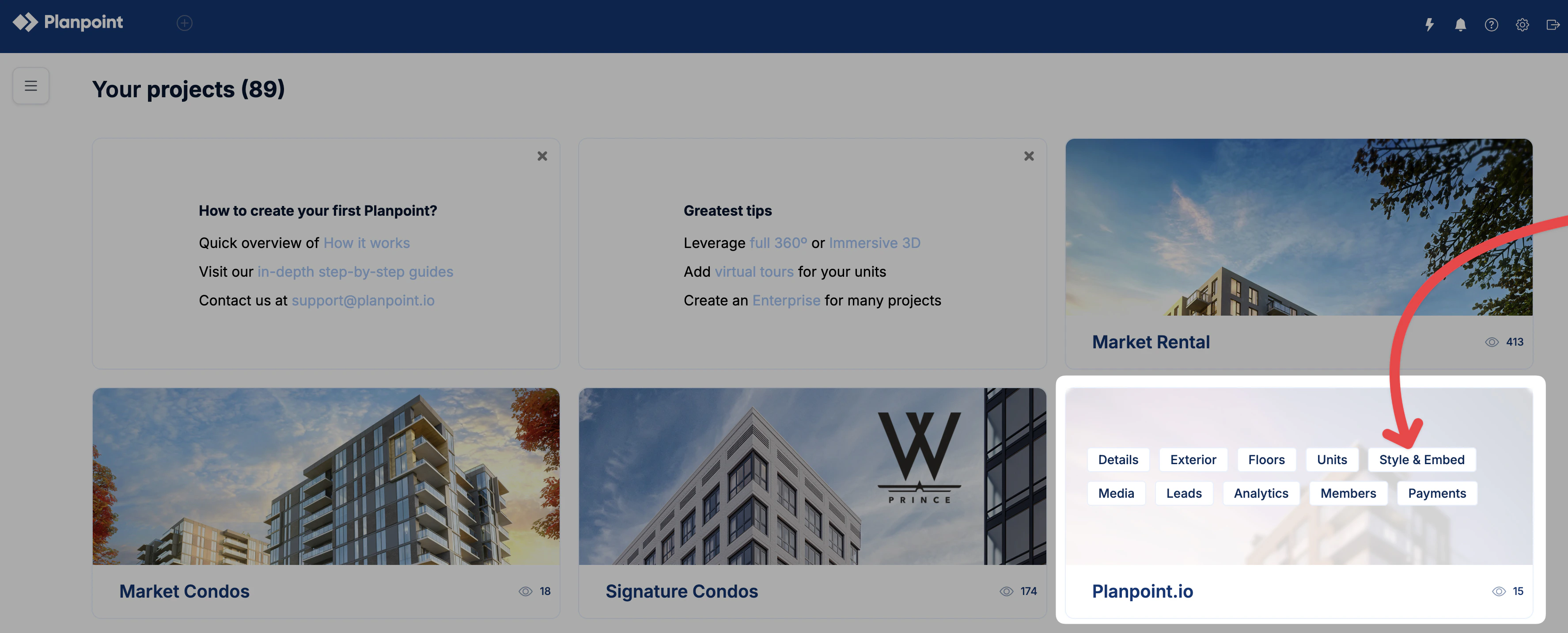
From your dashboard, click Style & Embed at the top of the project. If you are already inside a project, navigate to Settings → Style & Embed.
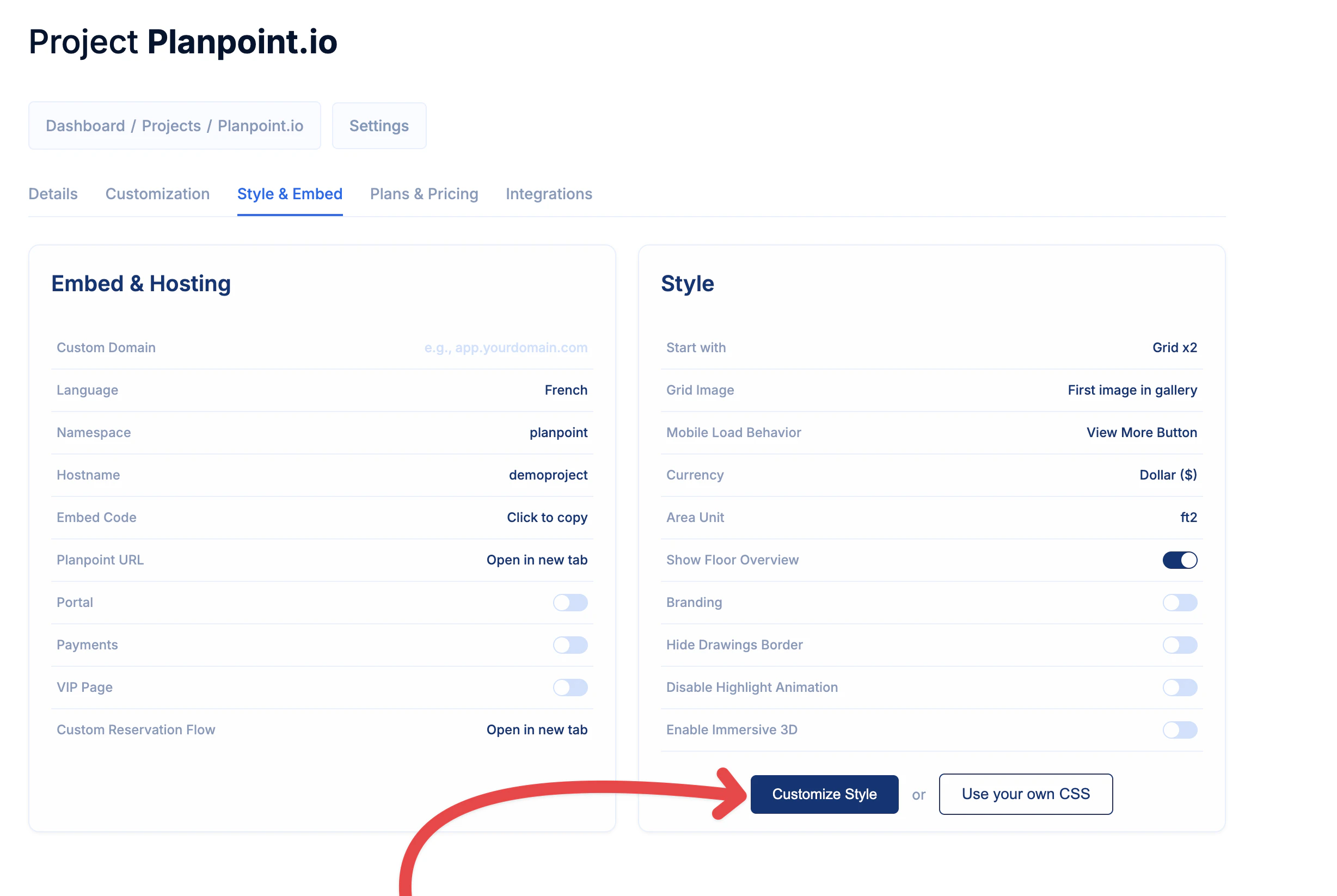
Click on Customize Style.
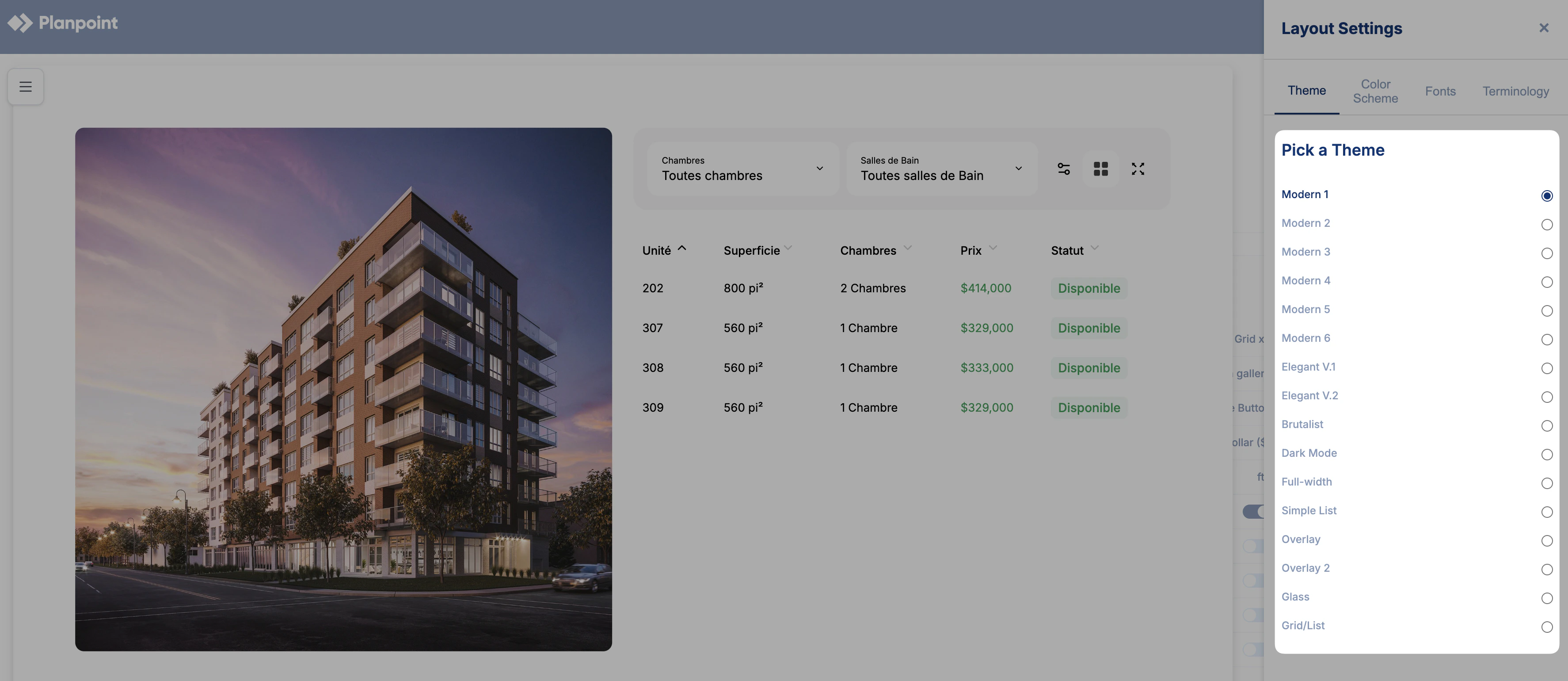
In the Style editor, navigate to the Themes section and select the theme that best fits your needs. The theme will be applied immediately, and you can change it at any time.
You can also use your own CSS. To get started, download the default theme CSS, make your edits, and then upload it.