

How It Works, In Short
- Your real estate project’s website is hosted on its own domain (e.g.
astoria.com). - Planpoint Viewer is embedded on a page like
astoria.com/floorplans. That embedded viewer is not crawlable by Google because it’s an iframe. - To make the content of Planpoint Viewer searchable, add a CNAME subdomain (e.g.
floorplans.astoria.com) and connect it in Style & Embed settings. - On that subdomain we serve the units as dedicated, server-rendered SEO pages — not the embedded Viewer. The content lives in the raw HTML, so Google can read and index it. Each page still links into the interactive viewer.
- The sitemap.xml and robots.txt documents are generated automatically and stay up to date on every publish — nothing manual.
- Titles and descriptions are automatic and descriptive, e.g. the landing page reads
Astoria — Floor Plans & Availability, unit pages readUnit 202 — 2 Bedroom Floor Plan at Astoria, with auto descriptions summarizing available units, layouts and pricing.
When you connect a custom domain to your project (e.g.
viewer.yourproject.com), Planpoint automatically serves a set of public, search-engine-friendly pages for it. The domain exposes your units as real, crawlable web pages — so they can be indexed by Google and show up when buyers search.
The pages are fully server-rendered (the content is in the HTML, not loaded later by JavaScript), which is what makes them indexable.
Before You Start
You need a custom domain connected to your project. If you haven’t set one up yet, please go to Style & Embed.This applies only to custom domains. Your Planpoint dashboard and the default
*.planpoint links are unaffected — they keep working exactly as before.What Gets Published
On your custom domain, these pages are generated automatically:
Each page carries a proper title, heading, and unit details so Google can understand and rank it.
Step-by-Step
Step 1 — Confirm your pages are live
Open your project’s custom domain in a browser and check:- The root (
viewer.yourproject.com) shows your units - Clicking a unit opens a page like
viewer.yourproject.com/unit/301 - A filter URL like
viewer.yourproject.com/2-bedroomsshows a filtered list viewer.yourproject.com/sitemap.xmllists your URLsviewer.yourproject.com/robots.txtloads
Step 2 — Add your domain to Google Search Console
Go to Google Search Console and add a new URL prefix property using your full domain (e.g.https://viewer.yourproject.com/).
A URL-prefix property covers just that subdomain. It does not cover your root marketing site (
yourproject.com) — that’s a separate property.Step 3 — Verify ownership
Choose the HTML file verification method (Google’s recommended option):- Download the verification file Google gives you (e.g.
google<hash>.html). - Send it to your Planpoint contact — we host it on your domain for you.
- Once it’s live, click Verify in Search Console.
Planpoint serves this file automatically for connected domains — you don’t upload anything yourself. Just share the file (or its name) with us and we’ll confirm when it’s ready to verify.
Step 4 — Submit your sitemap
In Search Console, open Sitemaps and submit: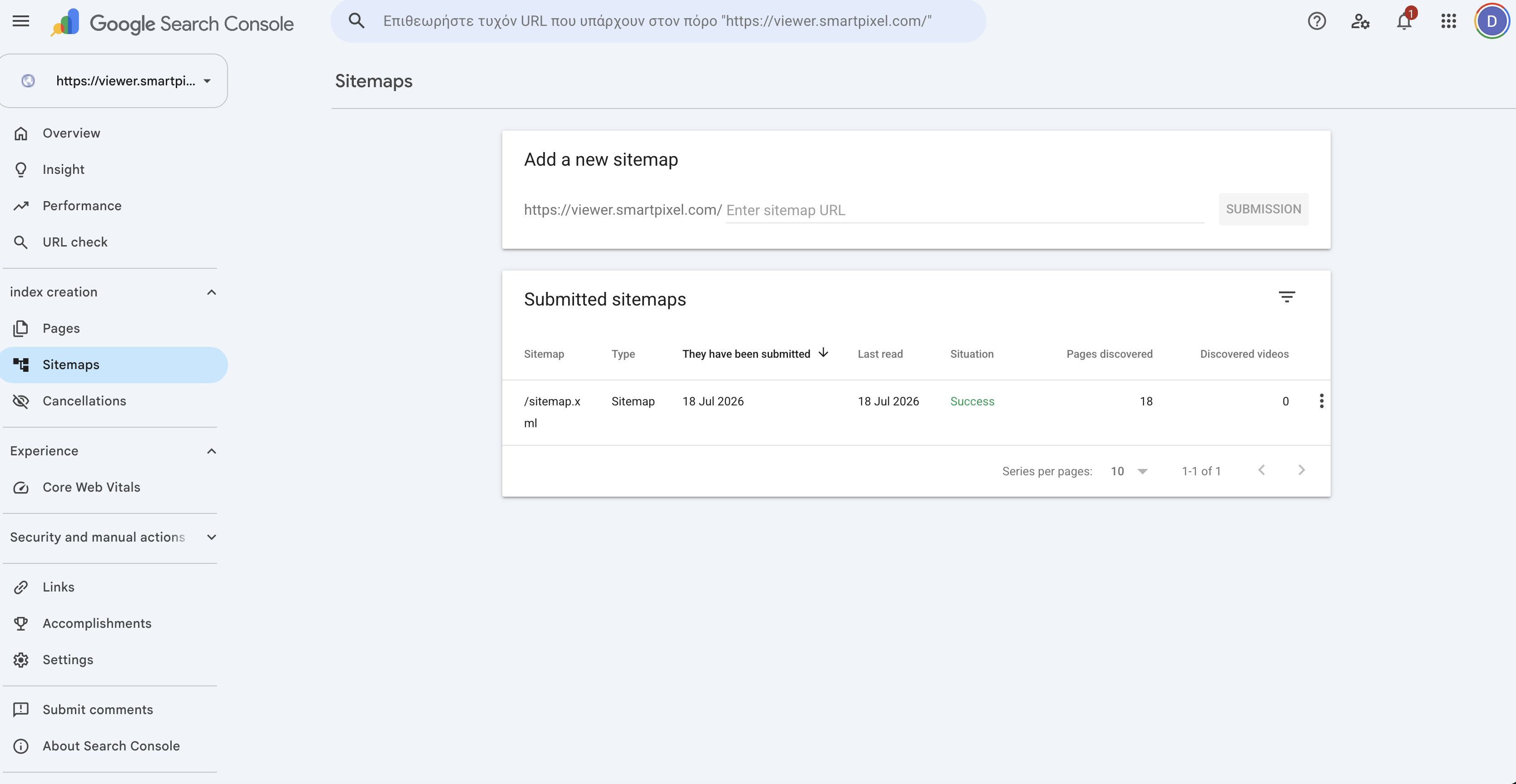
Step 5 — Request indexing (optional, speeds things up)
Use URL Inspection at the top of Search Console, paste a page URL (e.g. a unit page), and click Request Indexing. Do this for your homepage and a few key units to jump the crawl queue instead of waiting.How to Check If You’re Indexed
- In Google: search
site:viewer.yourproject.com. It lists every page Google has already indexed for the domain. New pages appear here over time as they’re crawled. - In Search Console: the Pages report shows how many URLs are indexed, and Performance shows impressions and clicks once pages start ranking.
FAQ
Does this change my dashboard or embed? No. Only public pages on your connected custom domain are affected. Your dashboard, embeds, and Planpoint links are unchanged. Will unavailable/sold units show up? Only units surfaced on your public pages are included in the sitemap. Can I index my main website (yourproject.com) too? That’s a separate site and a separate Search Console property. This feature covers the Planpoint viewer domain only.